
You start with a desk. Then you add a chair. Fed up with these daily hassles, I finally decided to change my setup that Sunday. I ordered a new, large monitor and a high-definition webcam. The day the delivery arrived, and I set everything up on my desk, my entire work life changed. The screen’s clear display provided relief to my eyes, and the crisp video calls restored my confidence. That one small decision made my entire work experience comfortable.
None of these items seemed very expensive on their own. But when I tallied up all the costs, the budget for my “simple home office” turned out to be much higher than I had anticipated. Even after spending all that money, I still couldn’t sit comfortably at my desk.
That day, I realized that people often make the same mistake I did when setting up a home office: buying things one by one as needed, without any solid plan.
The truth is, I didn’t need to buy the most expensive version of everything. I just needed a proper home office budget planning guide to tell me what to buy first, what could be postponed, and what I could easily do without.
Table of Contents
What Is a Reasonable Home Office Budget?
There cannot possibly be a single ‘right’ number, and anyone giving you a fixed figure is merely oversimplifying the matter. A reasonable home office budget depends on three things: what you already own, how many hours a day you actually sit at your desk, and what your work requires.
Someone who already has a laptop and needs a proper chair might spend $150. Someone building a full workstation from nothing, computer included, could reasonably spend $1,500 or more. Both of these people can end up with a setup that works well for them.
As a general starting point, most people building a functional home office from scratch, not counting the computer itself, land somewhere between $300 and $1,200. I kept this range broad because your exact figure depends on the options listed below.
Start With What You Already Have
Before you add anything to a cart, take stock of what’s already in your house. A kitchen table can work as a desk for a while. A dining chair, while not ideal for eight-hour days, might get you through your first few weeks. An old monitor from a previous job, a spare set of speakers, an extra lamp sitting in a closet, all of it counts.
Many remote employees start off working from the sofa or a corner of the kitchen table, and that’s a totally typical initial step. The point of a budget is not to replace all your stuff on day one, in an effort to find out what’s genuinely worth paying for.
A useful exercise: walk through your space and list every item you’d need for a functional workday. Then mark what you already have, even in an imperfect form. What’s left is your real shopping list, and it’s usually shorter than people expect.
The 3 Home Office Budget Levels
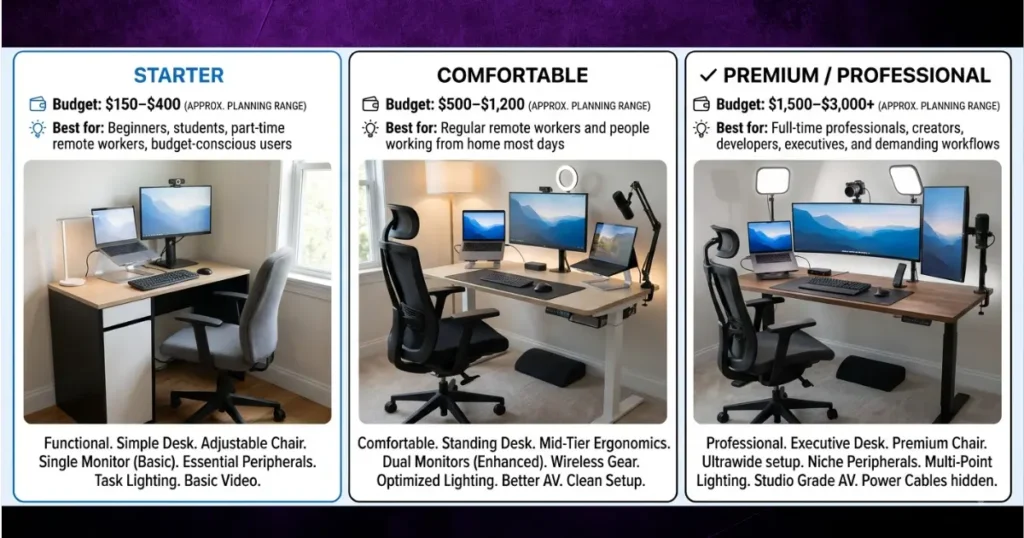
Needs are so varied, it is better to think in terms of a range of budgets rather than a fixed number. These are guidelines, not hard-and-fast rules, and assume that you’re providing your own computer unless otherwise noted.
If your setup plan revolves around a height-adjustable workstation, then our tried and tested recommendations in the Best Standing Desks of 2026 will help you find reliable options that fit your specific budget.
Starter Setup: Roughly $150–$400
This tier is for someone who already owns a laptop or computer and needs to go from “working off the couch” to “working at a real desk.” The needs include a simple desk, basic chair with decent lumbar support, and basic lighting. It won’t be glamorous, but you may make this setup rather practical if you pick the right basics.
Comfortable Setup: Roughly $500–$1,200
This is where most full-time remote employees ultimately end up. It usually includes a good external display, a more supportive chair, a nicer keyboard and mouse and better lighting. This tier is for the person who spends most of their day at their desk, and wants their setup to last months and years, not weeks.
Premium / Professional Setup: Roughly $1,500–$3,000+
Which makes sense for anybody whose profession depends on their gear, from video editors and designers to engineers running demanding software or anyone spending much of the day on video conferences. That may include a beefier computer, a larger or color-accurate display, a fully adjustable ergonomic chair, and specialist audio and lighting equipment. This is performance and reliability, not luxury for the sake of luxury.
Where you land inside, or even outside, these ranges depends entirely on what you’re starting with. Someone with a good laptop already needs a much smaller budget than someone starting completely from zero.
Where Should You Spend the Most?
Not every category deserves equal budget. Some items directly affect your health, comfort, and ability actually to get work done. Others are nice but replaceable. Here’s how to think about the biggest categories.
- Computer. If your laptop or desktop struggles to run the applications you need every day, that’s usually worth fixing first. A sluggish computer is costing you time every day, and time is the one thing you can’t get back.
- Office chair. You’ll likely spend more hours in your chair than in any other piece of furniture you own. According to Mayo Clinic’s office ergonomics guidance, a good chair supports your spine’s natural curve, lets your feet rest flat on the floor (or on a footrest), and allows your thighs to stay roughly parallel to the ground. If you overlook these basics, a cheap chair can feel uncomfortable within a few hours, and the problem only worsens over the months.
- Desk. You don’t need a beautiful desk, but it does need to be the proper height and have adequate surface area and legroom. OSHA’s guidelines for computer workstations highlight that the ability to clear the legs and knees beneath the work surface is important to maintain a comfortable, neutral position all day long.
- Monitor. This is one of the highest-value upgrades for people coming from a laptop-only setup. Working off a small, low laptop screen for hours often means bending your neck downward and forward. Mayo Clinic recommends positioning your monitor so the top of the screen sits at or slightly below eye level, directly in front of you. A basic external monitor and a simple stand can make that adjustment possible for relatively little money.
- Keyboard and mouse. For those who type all day, these factors matter a great deal. A cramped, low-quality keyboard forces your wrists into awkward angles. It doesn’t need to be expensive; it just needs to keep your wrists straight and relaxed while you work.
- Lighting. This is one of the cheapest upgrades with a noticeable payoff. Harsh overhead lighting or screen glare contributes to eye strain, and a simple desk lamp positioned so the brightest light source is off to the side of your monitor, rather than behind or in front of it, solves most of the problem.
- Webcam, headset, and microphone. If your job entails frequent video calls, then it’s worth splashing out a bit here. If it doesn’t, this is one of the simplest categories to wait or skip.
- Power, internet, and cable management. A stable internet connection and a properly rated power strip or surge protector are easy to overlook but genuinely important, especially if your work depends on staying connected. Cable clips or a simple sleeve keep your desk usable, reduce daily friction, and cost very little.
A Simple Priority Order
When you’re deciding what to buy first, this order works for most people:
- Buy first: items that affect your safety, comfort, or ability to work at all- chair, desk, a working computer, reliable internet.
- Buy next: items that improve efficiency- external monitor, better keyboard and mouse, proper lighting.
- Buy later: items that add convenience or polish- a nicer webcam, a monitor arm, decorative touches.
- Skip for now: things that appear good on social media but don’t address an issue you really have, like a second or third monitor you won’t routinely use, or accessories purchased just because someone else’s desk layout looked nice.
Home Office Budget by Type of Worker
Your job affects where your money should go. A general framework helps, but here’s how priorities tend to shift depending on the work.
General remote employee: Usually benefits most from a comfortable chair, one external monitor, and reliable internet, the day-to-day basics of sitting and working comfortably.
Freelancer or self-employed professional: Often has to consider both comfort and dependability since there is no employer safety net if equipment fails. Here, a backup plan for internet disruptions or device failures is more important.
Writer: Usually requires a comfy chair and a distraction-free environment more than strong gear. A bright light and an inexpensive but sturdy laptop might take you farther than pricey gear.
Developer: May need to prioritize computer performance and a larger monitor (or a second one) for reading code and documentation side by side.
Designer: Often benefits from a higher-resolution or color-accurate monitor, since visual precision affects the actual quality of the work.
Video editor or content creator: Usually needs to prioritize computer processing power and storage first, since editing software is resource-intensive, followed by an accurate display.
Online teacher: The quality of the video and audio are usually the most important factors. A good camera, microphone and consistent lighting are more important than an expensive computer.
Entrepreneur running a small business: Priorities vary widely depending on daily tasks, but reliable connectivity and a workable desk setup are close to universal needs.
Student: Often does best focusing on a comfortable chair and a functional desk, since the computer is frequently already provided by school or work.
The point isn’t to buy based on a job title; it’s to notice which parts of your daily work strain you most, and fund those first. If you are setting up your workspace from scratch and wondering where to start, our guide, Remote Work Essentials for Beginners, walks you through the core gear worth investing in first.
One-Time vs. Recurring Home Office Costs
- A home office is simple to conceive of as one number up front, but that’s just half of the story. A $1,000 setup doesn’t imply you will spend $1,000 a year.
- For me, this was a one-time cost including a desk, chair, monitor, keyboard, mouse, webcam, and lighting. I bought them once and never had to spend any money on them again except for the occasional replacement.
- Ongoing expenses include your internet bill, software subscriptions, cloud storage, backup services and eventual repair or replacement of parts that wear out. They pile up month after month and year after year and are sometimes not included in home office budget planning at all.
- When you’re budgeting, it helps to separate these two categories. A $700 one-time setup, plus $60 a month for software and internet, yields a very different annual total than the upfront price tag suggests.
How to Build a Home Office on a Tight Budget
A limited budget doesn’t mean a bad setup- it means being deliberate about where the money goes. A few practical strategies:
- Use what you already own for as long as it’s genuinely usable, even if it’s not ideal.
- Buy fewer items initially and see what you actually miss after a few weeks, rather than guessing up front.
- Consider refurbished electronics from reputable sellers for items like monitors or a secondary computer, where the savings can be significant.
- Check secondhand furniture carefully — a used desk is usually fine, but inspect a used chair’s support and adjustability before relying on it for full workdays.
- Wait for sales on furniture and electronics rather than buying at full price out of impatience.
- Prioritize function over appearance. A plain but supportive chair beats a stylish one that hurts your back by 3 p.m.
- Use simple, low-cost cable management — binder clips and zip ties work as well as expensive organizers.
- Upgrade one item at a time instead of replacing your whole setup at once.
- Avoid duplicate accessories — you likely don’t need two keyboards, two lamps, and two sets of speakers “just in case.”
- Check what your employer already provides before buying anything expensive (more on this below).
Spending less is a completely reasonable choice in a lot of situations- for a part-time remote job, a temporary setup, or while you’re still figuring out what you actually need.
Where You Should NOT Overspend
Just as important as knowing where to spend is knowing where extra spending no longer pays off. A few examples:
- A dramatically more expensive keyboard usually doesn’t outperform a mid-range mechanical one for most people’s daily typing needs.
- Buying a second or third monitor before you’ve confirmed you’ll actually use it regularly is a common overspend.
- High-end RGB lighting setups and elaborate desk accessories add visual flair but rarely improve how you actually work.
- The most expensive chair on the market isn’t automatically better for your body than a mid-range chair with good adjustability, fit matters more than price tag.
Common Home Office Budget Mistakes
A few patterns show up again and again, and none of them is really about being careless; they’re about buying in the wrong order.
- Buying everything at once. This makes it hard to tell which purchase actually improved your comfort or productivity, and it front-loads spending before you know what you truly need.
- Spending heavily on aesthetics before function. A beautiful desk setup that photographs well but leaves you slouching isn’t doing its job.
- Choosing the cheapest chair without considering comfort. The cheapest option isn’t always the most economical one if you end up replacing it within a year.
- Buying accessories before core equipment. A nice desk lamp doesn’t help much if you’re still working from a dining chair.
- Copying someone else’s setup from social media. What works for a content creator’s on-camera desk may not match what your actual job requires.
- Ignoring existing employer benefits. Buying something out of pocket that your employer would have reimbursed is an easy mistake to avoid by simply asking first.
- Forgetting recurring costs. Focusing only on the upfront purchase and ignoring ongoing software, internet, and maintenance costs.
- Ignoring cable and power needs. A cramped, tangled desk setup with an overloaded power strip is both frustrating and, in some cases, a safety concern.
- Buying equipment that doesn’t match your actual work. A high-end graphics monitor doesn’t help much if your job is mostly spreadsheets and email.
- Upgrading before identifying the real problem. If your neck hurts, a new keyboard won’t fix it; the monitor height might be the actual issue.
Should You Buy New, Used, or Refurbished?
This depends on the item. Electronics like monitors, keyboards, and computers can often be bought refurbished from reputable retailers or manufacturers at a real discount, with functionality that’s close to new.
Furniture is more situational. A used desk is usually a safe bet, since there’s little that can go wrong with a flat surface and four legs. A used office chair is trickier; check that the adjustable parts (height, tilt, armrests) still function properly and that the cushioning hasn’t broken down, since a worn-out chair can undermine the ergonomic support it’s supposed to provide.
What Should Your Employer Pay For?
If you’re a remote employee, it’s worth checking your company’s policies before spending your own money on anything beyond the basics. Some employers provide:
- A company laptop or computer
- A stipend for a monitor or equipment
- A one-time home-office stipend
- Internet reimbursement
- Ergonomic equipment programs (chairs, keyboard trays, monitor arms)
- Reimbursement for approved purchases with a receipt
Not all employers offer these, and rules vary greatly by firm and job. Before you spend a lot of money, please send a quick message to HR or your boss to clarify what is currently covered. “Five minutes of a question that could save you real money.”
Can You Deduct Home Office Expenses on Your Taxes?
This is a common question, and the answer depends heavily on your employment status.
If you’re a W-2 employee — including remote employees who work from home full-time- you generally cannot deduct home office expenses on your federal tax return. This has been the case since unreimbursed employee business expenses were eliminated as a federal itemized deduction, and it applies even if working from home is a condition of your job. A small number of states allow a version of this deduction on state returns, so it’s worth checking your specific state’s rules if this applies to you.
If you’re self-employed — a freelancer, independent contractor, or sole proprietor- you may be able to deduct home office expenses if you use part of your home regularly and exclusively for business. According to the IRS, there are two main calculation methods: the simplified method, which allows a standard deduction of $5 per square foot of qualifying office space up to 300 square feet (a maximum deduction of $1,500), and the regular method, which is based on the actual business-use percentage of your home expenses, calculated using IRS Form 8829.
If you have employees or you’re a corporation, the regulations might change even more depending on your company structure, and this is one of those times when expert help is needed, not less.
None of this means that buying a desk, chair, or monitor is automatically tax deductible; eligibility depends on your work classification and how the space is used, not on the purchase itself.
Tax laws vary depending on your personal circumstances and are subject to change. Review current IRS instructions or consult with a knowledgeable tax expert before claiming a deduction.
Example Home Office Budgets
These are just examples to show how budgets change with circumstances, not statements about any particular person.
Example 1: Starting From Scratch. If you’re someone who doesn’t have any gear and you’re on a budget of about $600, you might opt for a basic desk, an entry-level ergonomic chair, and a simple monitor, and call it a day for a keyboard, mouse, and basic lighting. If necessary, the computer itself would probably need its own higher-budget allocation or a company-supplied gadget.
Example 2: Already Owns a Laptop. With a working laptop already in hand, the same $600 budget stretches much further. Money can go entirely toward the workstation- chair, desk, monitor, and lighting- without needing to account for a computer at all.
Example 3: Full-Time Remote Professional. If you spend eight or more hours a day at your desk, it’s easy to see why you should spend $1200 to $1800 on a good chair that supports you, a screen that’s the right size, and fast internet. Because you have to do this every day, convenience and reliability are important.
Example 4: Freelancer or Creator. A freelance video editor might allocate the bulk of a $2,000 budget toward computer performance and a color-accurate monitor, while keeping the desk and chair modest- a different balance than a general remote employee would choose with the same total budget.
Where Does an Extra $100 Make the Biggest Difference?
This is a useful way to think about upgrades once you have the basics covered. An additional $100 tends to matter most when it goes toward:
- A noticeably better chair, if your current one is causing real discomfort
- A larger or better-positioned monitor, if you’re still working off a small laptop screen
- Better lighting, if glare or dim lighting is genuinely a daily issue
- More reliable internet, if outages or slow speeds are affecting your work
- A better keyboard and mouse, if you’re doing heavy daily typing
That same $100 tends to matter far less when it goes toward a marginal upgrade on something that already works fine- a slightly nicer version of a keyboard you’re already happy with, for example. The rule of thumb: spend where there’s an actual daily friction point, not where there’s simply a nicer-looking option available.
How to Upgrade Your Home Office Over Time
You don’t need to build your ideal setup in one purchase. A common, sensible approach is to start with the essentials, use the space for a few weeks, and then upgrade based on what you actually notice; not what you assume you’ll need.
If your back hurts in the middle of the afternoon, it’s because of the chair. When you squint at your screen, it means that the lighting or monitor height is off. If you have to wait for your computer to catch up all the time, that means the hardware is broken. Instead of buying everything at once and hoping it all works out, it’s usually better to let real, specific problems guide your next purchase.
Home Office Budget Checklist
Before Buying
- ☐ What equipment do I already own?
- ☐ What does my employer provide?
- ☐ What problem am I actually trying to solve?
- ☐ How many hours a day do I work at my desk?
- ☐ What is my total budget?
- ☐ Which items are essential versus optional?
Buying
- ☐ Core computer or work device
- ☐ Desk
- ☐ Chair
- ☐ Monitor
- ☐ Keyboard and mouse
- ☐ Lighting
- ☐ Audio and video equipment (if needed)
- ☐ Power strip and cable management
- ☐ Internet and networking setup
After Setup
- ☐ Adjust chair height and support
- ☐ Position monitor at eye level
- ☐ Check for glare and lighting issues
- ☐ Organize and secure cables
- ☐ Test video and audio quality
- ☐ Review comfort after a full week of use
- ☐ Identify what actually needs upgrading next
Sources / References
- IRS — Topic no. 509, Business Use of Home: https://www.irs.gov/taxtopics/tc509
- IRS — Simplified Option for Home Office Deduction: https://www.irs.gov/businesses/small-businesses-self-employed/simplified-option-for-home-office-deduction
- OSHA — eTools: Computer Workstations: https://www.osha.gov/etools/computer-workstations
- Mayo Clinic — Office Ergonomics: Your How-To Guide: https://www.mayoclinic.org/healthy-lifestyle/adult-health/in-depth/office-ergonomics/art-20046169
- Mayo Clinic News Network — Home Office Ergonomics Tips: https://newsnetwork.mayoclinic.org/discussion/home-office-ergonomics-tips/
FAQs
How much should I budget for a home office?
It depends on what you already own. A starter setup for someone with a laptop can cost as little as $150–$400, while a full setup built from nothing, including a computer, can run $1,500 or more. Most people land somewhere in between.
What is the cheapest way to build a home office?
Begin with what you already have, and buy only the basics at first (a chair, a desk, and a way to sit comfortably while you work). For the rest, think about buying used tools that have been fixed up or carefully checked out, or used furniture.
What should I spend the most money on in a home office?
In general, your chair and computer affect your physical comfort and your ability to get work done. Smaller gadgets are less important than a comfy chair and a computer that can manage your tasks.
Is a home office tax deductible?
It is dependent upon what you do. Generally, W-2 employees are not allowed to deduct home office costs on their federal return. The self-employed may qualify via the usual procedure or the IRS simplified approach. Check current IRS instructions or with your tax advisor for your particular circumstances.
Should I buy a desk or chair first?
If you were to choose, the chair generally has a greater influence on everyday comfort. But if you’re working from a sofa or bed right now, a simple workstation that lets you sit properly is generally first on the list.
How can I build a home office on a $500 budget?
You should initially focus on the chair and the desk, since they have the greatest impact on comfort. If you already possess a laptop, a basic monitor and modest lighting may frequently fall within that price as well.
How can I upgrade my home office without spending a lot?
Upgrade one item at a time based on a specific problem, like discomfort, poor lighting, or a slow computer, rather than replacing multiple items at once.
What home office expenses should I track?
Track both one-time expenditures (desk, chair, monitor) and ongoing expenses (internet, software subscriptions, cloud storage) to get a realistic view of your overall yearly spending, not just your upfront costs.

Hi, I am Jiyauddin. Freelance veteran with 20+ years of experience across computer operations, graphic design, and digital marketing. At GearForRemote.com, I share actionable guides, tech reviews, and proven workflows to help remote workers elevate their digital productivity.