
Disclaimer: This post contains affiliate links. This means we may earn a commission should you choose to sign up for a program or make a purchase using these links. There is no added cost to you, but your purchase through these links helps support our content. Check out our disclaimer and disclosure page for more details.
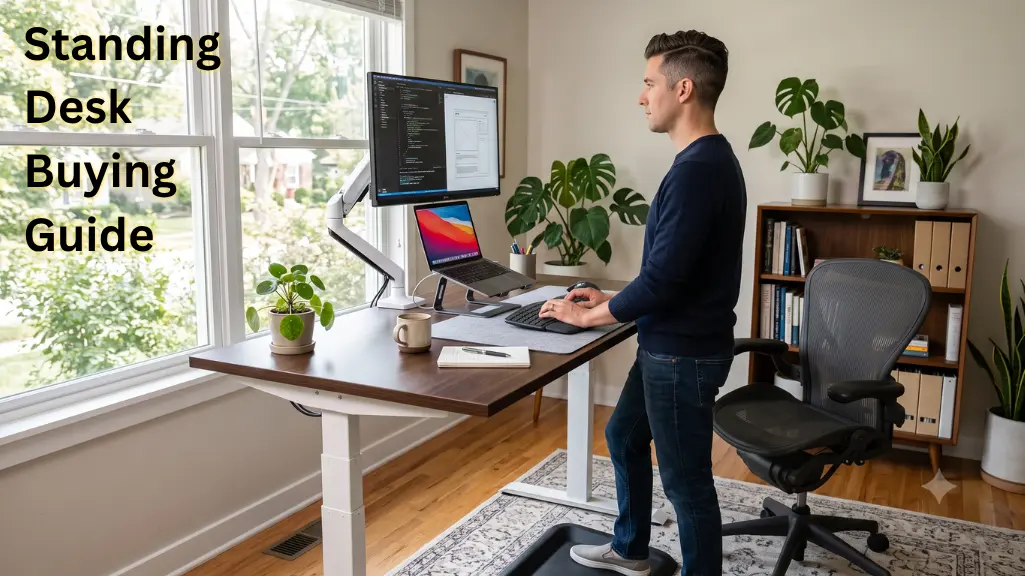
By now, you’ve scrolled past a dozen ads for standing desks. They all make the same promise: Better posture, more energy, less back pain. But start shopping and “a desk that goes up and down” becomes a spec sheet full of motors, height ranges, weight limits and stability ratings you never had to think about before.
That’s where most first-time buyers get stuck. You don’t need to become a furniture engineer to buy the right one – you need to know which specs actually matter and which ones are mostly marketing.
This standing desk buying guide walks you through the factors worth checking before you part with your money: height range, stability, desktop space, weight capacity, motors, controls, materials, and warranty. You’ll also get a practical setup tutorial, common purchase blunders, and a budget breakdown so you know what to expect at each price point. By the end, you’ll be able to compare any standing desk with confidence (and not guesswork).
Quick Answer: What to Check Before You Buy
If you only have five minutes, check these ten things:
- Height range – does it fit your actual sitting and standing height, not just the “average” range?
- Stability – does the desk stay steady at full height, especially when typing?
- Desktop size – enough width and depth for your monitors and gear, without wasted space?
- Weight capacity – does it comfortably exceed the combined weight of everything you’ll put on it?
- Adjustment mechanism – electric or manual, and does that match how often you’ll change positions?
- Motor configuration – single or dual motor, based on your setup’s size and weight?
- Controls – memory presets, a digital display, and reliable up/down buttons?
- Noise – quiet enough for video calls and shared spaces?
- Warranty – meaningful coverage on the frame, motor, and electronics?
- Cable management – a real plan for keeping cords out of the way as the desk moves?
We’ll go through each of these in detail below.
Table of Contents
What Is a Standing Desk?
A standing desk, also called a sit-stand desk or height-adjustable desk, is a desk that can change height so you can work sitting or standing. Some are electric and move at the push of a button. Others are manual, using a hand crank or a lever-and-spring system.
This is different from a fixed-height standing desk, which is built at one tall height and never adjusts. If you never want to do anything but stand, they’re fine. But most home office owners want to sit and stand all day, and that’s the whole idea of a sit-stand configuration. This flexibility is what distinguishes a truly height-adjustable desk from a workstation that’s just tall.
How to Choose a Standing Desk
1. Check the Height Range First
It’s tempting to look at the maximum height and assume taller is better. But what matters most is whether the desk’s full range-both the minimum and maximum-fits your body.
Your ideal working height depends on your height, your chair and whether you sit or stand to type. A rough way to gauge your standing height: stand up straight, let your arms hang naturally, then bend your elbows to about 90 degrees. OSHA’s guidance on neutral body positioning recommends keeping your wrists straight and your elbows close to your body at about a 90- to 120-degree bend, and suggests that your fingertips should be close to where your desktop surface sits when standing.
For sitting height, the OSHA computer workstation eTool notes that leg clearance under the desk should generally fall between 20 and 28 inches, which gives you a sense of the range a desk needs to support comfortable seated use.
If you’re under about 5’4” or over about 6’2”, pay extra attention to the desk’s minimum and maximum height specs. Many mid-range desks are designed around an “average” adult range and won’t go low enough for shorter users or high enough for taller ones. Always check the actual published height range in inches – not just marketing language like “fits most users.”
2. Look for a Stable Frame
Many budget desks are not very stable, even if their weight capacity looks good on paper. Weight capacity is a static measure of how much the frame can support – not how it behaves when you’re actively working on it. This means a desk can be rated to hold 250 pounds and still wobble noticeably when you type.
Watch for three types of movement:
- Wobble – a general shake when you tap the desktop or type quickly.
- Lateral movement – side-to-side sway, especially at taller heights.
- Front-to-back movement – rocking when you lean on the desk or push your chair back.
Wider leg stances and thicker frame tubing improve stability in general, as does a crossbar connecting the two legs. Even if the desk is the same height, a narrow, tall desk with thin legs is more likely to sway than a wider desk with a solid base.
A simple pre-purchase stability checklist:
- Does the listing/manufacturer page talk about independent stability/wobble testing?
- Is there a cross brace between the legs of the frame?
- Are the legs heavier-gauge steel than thin tubing?
- The review mentions stability at full standing height (not just desk height)?
3. Choose the Right Desktop Size
Desktop size depends entirely on what you’re putting on it — not on grabbing the biggest surface you can afford.
- Laptop-only setups can work comfortably on a 40–48-inch-wide desktop.
- Laptop plus one external monitor usually needs at least 48 inches of width to avoid a cramped layout.
- Single-monitor setups are comfortable around 48–55 inches.
- Dual-monitor setups generally need 55–63 inches of width, plus enough depth (around 28–30 inches) to keep the monitors at a proper viewing distance.
- Creators and developers running multiple monitors, a tablet, or additional peripherals often benefit from the 60-inch-plus range.
- Gaming setups with a wider curved monitor or extra peripherals also tend to need the larger end of that range.
Bigger isn’t automatically better. An oversized desktop in a small room can make the space feel cramped, increase leverage forces on the frame (which can worsen wobble), and force you to reach farther than necessary for things you use constantly, like your keyboard and mouse.
4. Understand Weight Capacity
The weight capacity listed on a standing desk is the maximum the frame is rated to lift and hold, but that number must account for everything you’re putting on the desktop, not just the desktop itself.
Add up the realistic combined weight of:
- Your monitor or monitors
- A monitor arm, if you’re using one
- A desktop computer tower, if applicable
- Your laptop
- Speakers
- A desk lamp or lighting setup
- Any other accessories (document holders, dual-monitor arms, etc.)
Two 27-inch monitors alone can weigh 15 to 20 pounds combined, and a monitor arm, desktop tower and accessories add up quickly. If your total setup weight is near the desk’s maximum rated capacity, that’s a hint to choose a more robust frame rather than test the limits. Not all manufacturers publish a required safety margin, so it’s not the safest bet to rely on a specific buffer percentage. Better: Choose a desk with a capacity much higher than you actually need. And if you’re going to be adding gear later on, re-run those numbers.
5. Electric vs. Manual Standing Desks
| Feature | Manual | Electric |
| Price | Generally lower | Generally higher |
| Adjustment effort | Requires cranking or a lever plus physical push | Push-button, minimal effort |
| Speed | Slower, effort-dependent | Faster, consistent |
| Convenience | Lower – takes more time and effort | Higher – quick to switch positions |
| Noise | Mechanical creak or crank sound | Motor hum, generally quiet on quality models |
| Maintenance | Fewer electronic parts to fail | Motor and control board add potential failure points |
| Best for | Occasional height changes, tighter budgets | Frequent sit-stand switching, daily use |
No single choice is “better” here. If you use one height most of the time and don’t change it much, or if budget is a priority, a manual desk can be a smart choice. If you’ll be switching between sitting and standing a lot during the day, an electric desk makes more sense because cranking a desk over and over tends to make people stop bothering.
6. Single Motor vs Dual Motor
A single-motor desk has one motor connected to both legs with a crossbar, while a dual-motor desk has an independent motor in each leg.
Dual-motor desks tend to handle the load more smoothly, have less strain when lifting heavier and larger desktops and offer better synchronisation as both legs move together more precisely, which reduces the reduction that contributes to wobble. Single-motor desks are generally less expensive and quieter to manufacture and are perfectly adequate for lighter loads and smaller desktops.
Paying more for dual motors makes the most sense if you have a wide or heavy desktop, a dual-monitor setup, a desktop PC on the surface, or you plan to adjust the height frequently throughout the day. If you have a simple laptop-only setup on a smaller desk and don’t expect to add equipment, a single-motor frame can be a reasonable, more affordable choice – dual motors aren’t mandatory for every buyer.
7. Look at the Height Adjustment Controls
The control panel affects how much you’ll actually use the sit-stand feature day to day. Look for:
- Memory presets that save your preferred sitting and standing heights, so you don’t have to eyeball it every time.
- A digital display showing the current height in inches or centimetres.
- Anti-collision or child-lock protection, which stops the desk from moving if it hits an obstacle or a preset is pressed accidentally – a feature worth having especially in households with kids or pets.
- Programmable positions, useful if more than one person uses the desk.
If you switch between sitting and standing several times a day, presets aren’t a luxury-they make the habit sustainable, not a chore.
8. Don’t Ignore Noise and Speed
Motor noise matters more than you think. That’s particularly true if your office is also your bedroom, your office is next to a shared living space, or you’re on a lot of video calls. A loud motor in the background of a meeting is a small thing that quickly gets annoying.
Adjustment speed is more about convenience than quality. A faster motor is good, but it doesn’t really tell you how stable it is or how durable it will be over time. If a quieter, slower, more stable alternative exists, speed shouldn’t be the only deciding factor.
9. Consider the Desktop Material
| Material | Durability | Weight | Appearance | Maintenance | Price |
| Laminate | Decent, can chip at edges over time | Lightest | Basic, wide color range | Easy to wipe down | Lowest |
| MDF (with veneer) | Moderate, sensitive to moisture | Moderate | Can look premium with good veneer | Needs care around spills | Low–moderate |
| Bamboo | Good, naturally moisture-resistant | Moderate | Warm, natural look | Occasional oiling helps longevity | Moderate |
| Solid wood | Very durable if well-sealed | Heaviest | Most premium look and feel | Needs sealing/maintenance over time | Highest |
“There is no best material for all.” Laminate is a good choice for budget rigs. Bamboo is a good option, and it looks different without a big cost increase. Solid wood is the most durable and attractive, but it also adds weight (reducing the frame’s useful capacity) and cost. If you’re adding a monitor arm, make sure the desktop is thick and solid where the clamp attaches. Thin laminate or hollow-core desktops can be harder to clamp tightly.
10. Check Warranty and Customer Support
The length of the warranty is not the only thing that matters – the coverages are more important. Check separately for:
Warranty- usually the longest, since frames have fewer moving parts.
Motor warranty – typically shorter than the frame because it is the part most likely to fail.
Electronics warranty – on the control panel and display.
- Desktop warranty – covers the surface itself, sometimes shorter if it’s a natural material like solid wood.
- Replacement parts availability – can you get a replacement motor or control panel years later, or does the company stop stocking parts?
- Customer support responsiveness – worth checking independent reviews for, since this varies a lot between brands.
- Return policy – especially important since you often can’t fully judge stability and comfort until it’s assembled in your space.
A desk with a “10-year warranty” that only covers the frame, paired with a 2-year motor warranty, is a different value proposition than the marketing headline suggests. Read the fine print.
How to Set Your Standing Desk at the Correct Height
Getting your desk height right takes a few minutes and makes a real difference to comfort. Per OSHA’s neutral posture guidance:
- Stand naturally in front of the desk, feet flat, weight balanced.
- Relax your shoulders – they shouldn’t be hiked up or hunched forward.
- Keep your elbows close to your body, bent to roughly 90–120 degrees.
- Set the keyboard and mouse height so your wrists and forearms stay roughly straight and parallel to the floor – not bent up or down.
- Keep your wrists in a neutral position – don’t bend them back or forth.
- Position your monitor at eye level or slightly below, generally at least 20 inches away, per OSHA’s workstation guidance.
- Check your neck and head position – your head should stay level and in line with your torso, not tilted forward to look at the screen.
- Fine-tune the desk once everything’s roughly in place, and save it as a memory preset if your desk has one.
There’s no single “correct” height that applies to everyone – it depends on your own body proportions, chair, and what you’re doing at the desk. Use these steps as a process, not a fixed number.
How High Should Your Monitor Be?
Monitor height matters as much as desk height, and it’s easy to get wrong even with a great desk. OSHA recommends positioning the monitor so the top of the screen is roughly at or slightly below eye level, directly in front of you, and at least 20 inches away.
The integrated screen on a laptop is usually too low for a truly neutral neck position, so many home office setups combine a laptop with a stand or external monitor. In single external monitor setups, you can use a monitor arm or stand to adjust height rather than a stationary monitor stand. If you have two monitors, they should be at the same height, the same distance away, and angled toward you at the same degree (if you alternate your attention between the two screens, you don’t want to twist your neck to one side over and over).
Buying a standing desk on its own doesn’t automatically create an ergonomic setup – the desk gives you the flexibility. Monitor height, keyboard position, and chair setup still need attention, no matter how good the desk is.
Should You Stand All Day at a Standing Desk?
No – and this is one of the most misunderstood parts of standing desk shopping. Standing all day isn’t the goal, and it isn’t automatically healthier than sitting all day.
A large study of 83,000+ people published in the International Journal of Epidemiology found no link between long periods of standing and a lower risk of cardiovascular disease. Still, it did show an increased risk of circulatory disorders such as varicose veins. Another study, a review of research on prolonged standing published in Rehabilitation Nursing, found consistent evidence of an association between prolonged standing at work and problems such as lower back and leg pain, fatigue, and cardiovascular strain – similar to problems associated with prolonged sitting.
In fact, OSHA guidance and CCOHS recommendations on standing and sitting focus less on prescribing an ideal position than on regularly changing positions instead of staying static in either position for hours at a time. Here’s a simple fix:
- Don’t sit all day or stand all day; alternate between the two every 30-60 minutes.
- Go for regular walks – a small walk is better for breaking up static posture than merely standing there.
- Wear comfortable, supportive shoes if you have to stand for long periods.
- Think of an anti-fatigue mat. It can relieve soreness in your legs and feet while you’re on your feet.
- Stand with knees unlocked and body relaxed. Don’t lock knees or stand stiffly. Shift your weight or use a footrest occasionally.
Ergonomics comes from the whole workstation working together – chair, monitor height, keyboard position, and movement habits – not from the desk alone.
Standing Desk Buying Mistakes to Avoid
- Buying based only on price. The cheapest option often cuts corners on motor quality or frame stability, which shows up within the first year.
- Ignoring the height range. A desk that doesn’t go low or high enough for your body defeats the purpose, no matter how nice it looks.
- Ignoring stability. A high weight capacity doesn’t guarantee a wobble-free experience – check for stability specifically, not just load rating.
- Buying a desktop that’s too small. Cramming dual monitors onto a 40-inch desktop leads to a cluttered, uncomfortable setup.
- Ignoring the weight of your complete setup. Add up monitors, arms, and accessories before assuming the weight capacity is fine.
- Choosing features you don’t actually need. App connectivity or a dozen presets sound nice but don’t matter if you’re the only user and rarely change height.
- Forgetting monitor height. A great desk with a poorly positioned monitor still leaves you straining your neck.
- Ignoring cable management. Adjustable desks move – cords that aren’t managed can snag, stretch, or get pinched.
- Ignoring the warranty details. A long frame warranty means little if the motor warranty is short.
Assuming standing all day is the goal. As covered above, alternating positions matters more than maximizing standing time.
How Much Should You Spend on a Standing Desk?
Prices are subject to change based on sales and inventory levels, so please check with the individual retailers for current pricing. Prices vary by brand, material and features: There are three levels of standing desks for home offices in general:
Budget – Ideal for simple home office setups with one monitor or laptop. Think single-motor or even easier dual-motor frames, laminate desktops, and fewer control features. A good starting point for anyone trying out a sit-stand desk in their routine.
Mid-range – Best mix of stability, convenience and features for most home offices. At this level you’ll usually find dual-motor frames, more presets, better full-height stability and a wider choice of desktop materials, including bamboo.
Premium: Best for Heavy equipment, larger desktops, dual-monitor or gaming setups, or buyers who care about long-term build quality and better warranties. Look for beefier steel frames, higher weight capacities, and nicer desktop materials such as solid wood.
Rather than anchoring to specific dollar figures that change over time, compare desks within a tier by focusing on the specs covered earlier in this guide – height range, stability, weight capacity, and warranty – rather than price alone.
Which Standing Desk Is Best for You?
Best for a Small Home Office: Prioritise a compact desktop footprint (around 40–48 inches wide) paired with a frame that still offers solid stability – a narrow desk with a wobbly frame is worse than a slightly smaller, sturdier one.
Best for Tall Users: First aim for the highest height possible. Make sure the desk’s tallest height clears your standing elbow height.
Best for Short People: Minimum height matters – a lot of standard frames don’t go low enough for comfortable seated typing for shorter users.
Best for Dual Monitors: You’ll need desktop depth, frame stability and weight capacity, because two monitors and a monitor arm can get heavy quickly.
Best for Budget Buyers: Focus on the basics – height range and stability – rather than bells and whistles like app control or programmable lighting.
Best for Heavy Setups: Prioritise a dual-motor frame with a clearly rated high weight capacity and a reinforced desktop, especially for a desktop PC or multiple large monitors.
Best for Frequent Sit-Stand Users: Prioritize smooth, quiet adjustment and reliable memory presets, since friction in the adjustment process is what usually kills the sit-stand habit.
Features Worth Paying For
Worth Paying For
- A stable, well-braced frame (this affects daily comfort more than almost anything else)
- Dual motors for heavier or larger setups
- Memory presets
- Anti-collision detection
- A meaningful motor and frame warranty
Nice to Have
- Faster adjustment speed
- A digital height display
- Cable management trays built into the frame
- A wider range of desktop finish options
Mostly Marketing
- App/Bluetooth connectivity, unless you specifically want smartphone control
- Extremely high weight capacities far beyond what your setup will ever need
- Built-in extras like wireless chargers or speakers, unless you’d buy them separately anyway
Standing Desk Accessories You May Actually Need
- Monitor arm – frees up desktop space and makes it easier to get monitor height and distance right.
- Anti-fatigue mat – can reduce leg and foot discomfort during standing periods, based on general ergonomic guidance on prolonged standing.
- Ergonomic keyboard – helps maintain a neutral wrist position, especially for people who type for hours at a stretch.
- Ergonomic mouse – reduces repetitive strain from constant clicking and wrist rotation.
- Cable tray – prevents cords from stretching or getting caught when the desk goes up and down.
- Laptop Stand – brings the laptop screen closer to eye level. Especially handy if you’re not working with an external monitor.
- Footrest – Helps some users maintain a more neutral seated posture, especially if the desk’s minimum height is still slightly high.
- Desk Lamp – helps reduce eye strain from screen glare or dim rooms and pairs nicely with a dedicated home office setup (see our full home office setup checklist for more on lighting).
- Power Strip or Cable Management Clip – keeps power adapters and surge protectors organised instead of tangled under a moving desktop.
Not every accessory is necessary for every setup – the goal is to solve a specific problem you actually have, not to buy everything on this list.
Final Standing Desk Buying Checklist
- Correct minimum height for your body
- Correct maximum height for your body
- Stable at standing height, not just static weight capacity
- Enough desktop space for your actual equipment
- Adequate weight capacity with margin
- Suitable motor system (single or dual) for your setup
- Convenient controls with memory presets
- Acceptable noise level for calls and shared spaces
- Meaningful warranty on frame, motor, and electronics
- Reasonable return policy
- A cable-management plan
- A monitor positioning plan
Sources & Research Notes
- OSHA, Computer Workstations eTool — Good Working Positions, Workstation Components (Desks, Work Space): https://www.osha.gov/etools/computer-workstations
- CCOHS, Working in Standing and Sitting Positions (guidance on alternating posture and workstation design)
- Mayo Clinic, Office ergonomics: Your how-to guide: https://www.mayoclinic.org/healthy-lifestyle/adult-health/in-depth/office-ergonomics/art-20046169
- Halim, I. & Omar, A.R., research on prolonged standing strain, and related review: “Evidence of health risks associated with prolonged standing at work and intervention effectiveness,” Rehabilitation Nursing, cited via PubMed: https://pubmed.ncbi.nlm.nih.gov/25041875/
- Study of over 83,000 participants on standing time and cardiovascular/circulatory outcomes, International Journal of Epidemiology, reported via CNN: https://www.cnn.com/2024/11/12/health/standing-desks-health-effects-wellness
FAQs
What is the best height for a standing desk?
There is no single ideal height; it depends on your body. The elbow bent at about 90 degrees is a good rough guide to get you standing naturally. Your desktop should be close to where your fingertips land at that angle.
Are dual-motor standing desks worth the cost?
Yes, for most home office setups, especially dual-monitor or heavier setups. Dual motors tend to lift more smoothly and stay better in sync, so there’s less wobble. For lighter, simpler setups, one motor can suffice.
How much do I need to spend on a standing desk?
It is dependent on how heavy your setup is, the size you need, and how often you’ll be changing the height. Compare prices, but also look at stability and warranty across budget, mid-range, and premium tiers.
Are standing desks actually better than regular desks?
They’re not inherently “better” – they’re more flexible. Research shows that both prolonged sitting and prolonged standing carry health risks. The benefit comes from alternating positions throughout the day.
Can a standing desk be used with two monitors?
Yes, but choose a desktop at least 55 inches wide with adequate depth, plus a weight capacity and stability rating that comfortably supports two monitors and a monitor arm.
How much weight should a standing desk support?
Add up your monitors, monitor arm, computer tower (if any), and accessories, then choose a desk with a rated capacity clearly above that total rather than close to it.
Is it better to sit or stand while working?
Neither position alone is ideal for hours at a time. Ergonomic and occupational health guidance recommends alternating between sitting and standing regularly rather than picking one static posture.
What is the best standing desk height for tall people?
Taller users should prioritise the desk’s maximum height spec, confirming it clears a comfortable standing elbow height rather than assuming any adjustable desk will go tall enough.
What is the best standing desk height for short people?
Shorter users should prioritise the desk’s minimum height, since many standard frames don’t lower enough for a comfortable seated typing position.
How stable should a standing desk be?
It should show minimal wobble when typing or lightly leaning on the desk at full standing height – not just at desk height. Weight capacity alone doesn’t guarantee this.
What mistakes should I avoid when buying a standing desk?
The most common ones are buying on price alone, ignoring the height range for your body, underestimating your setup’s total weight, and assuming you should stand all day once you have the desk.

Hi, I am Jiyauddin. Freelance veteran with 20+ years of experience across computer operations, graphic design, and digital marketing. At GearForRemote.com, I share actionable guides, tech reviews, and proven workflows to help remote workers elevate their digital productivity.