
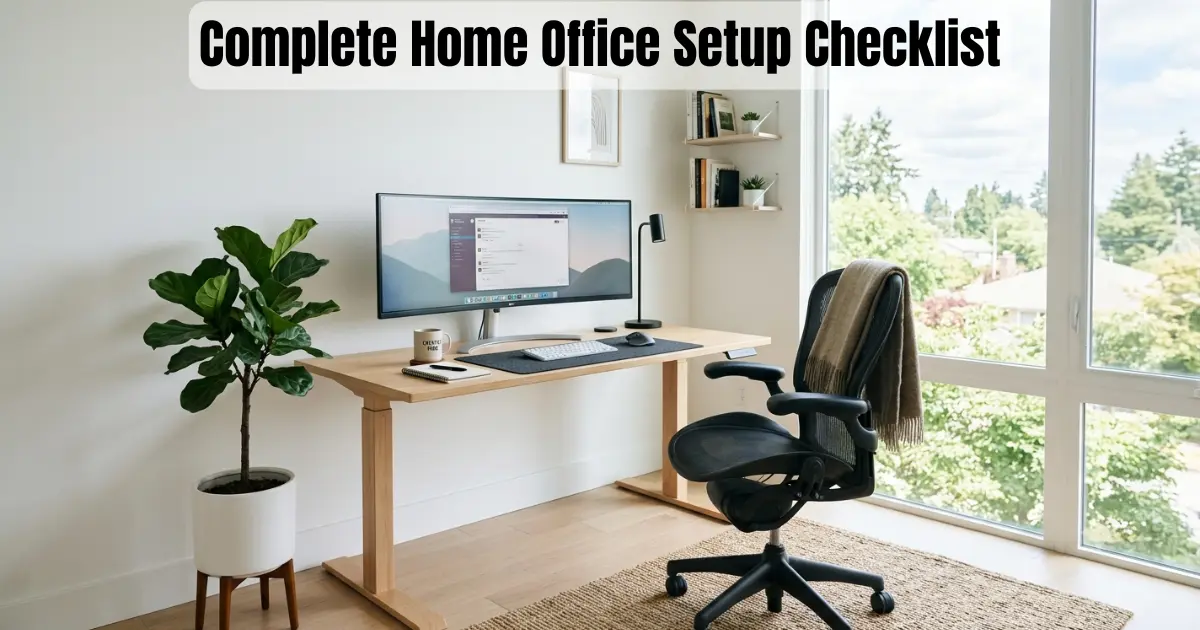
When I first started working from home, I also thought that a laptop, a cup of coffee, and a corner of the sofa were all I needed. No bulky standing desks, monitor arms, or other hassles.
But within a few weeks, reality hit me! By the end of every Zoom call, my neck would be stiff with pain. My workstation was such a tangled mess of cords I couldn’t even tell which cable belonged to which gadget. The lighting in the room was so terrible in video meetings I appeared like I was calling from a dark cave. Work oriented? It became nearly impossible for me to work continuously for even an hour without getting distracted.
If you are going through this phase too, believe me, you aren’t alone. I made the same mistake; I didn’t plan; instead, I just cobbled together makeshift solutions for my workspace as problems arose. I wish I had a comprehensive checklist for setting up my home office back then.
Based on my experience, I’ve put together this complete ‘Home Office Setup Checklist.’ I’ve covered everything from the right workstation and chair to lighting, cable management, and security, whether you’re an employee, freelancer, developer, or virtual assistant. After reading this article, you’ll know exactly what you need, where you can save money, and how to work within a budget.
So let’s design a workstation that makes your job simpler!
Table of Contents
What Is a Home Office Setup Checklist?
A home office setup plan is a list of all the things you need to work from home securely, comfortable and efficiently. It’s like a road map. You don’t just guess or copy a setup you saw on YouTube; instead, you go through each category one by one: workspace, furniture, tech, lighting, safety, and organization.
This doesn’t mean getting the fanciest or most expensive gear; the goal is just to make sure that nothing important is missed. For example, a lot of people who work from home might spend $300 on a good monitor but still use an old dining chair, which can cause lower back pain in just one month. Here is a list that is made just for you.
Why Every Remote Worker Needs One
This is more important than people believe, and here’s why:
- Efficiency: A clutter-free, clean desk helps you enter into concentrate mode quicker and remain there longer.
- Comfort: Sitting for hours in the wrong chair or looking down at a laptop screen all day adds up. Small discomforts compound into real pain over time.
- Health: OSHA’s recommendations for computer desktops say a well-designed ergonomic set-up may lessen the risk of muscle and joint strain that might result from long-term or repeated usage of a computer.
- Professionalism: Good lighting and a clean background make a real difference on video calls, especially if you’re client-facing.
- Organization: A tidy, well-planned space just makes day-to-day work smoother. You stop wasting five minutes hunting for a charger cable.
A remote work setup isn’t a luxury add-on anymore. For most of us, it’s the actual place where our career happens for 40-plus hours a week. It deserves some planning.
The Complete Home Office Setup Checklist
Let’s break this down into the pieces that actually matter, starting with the room itself and working outward.
Workspace
- Dedicated room or corner. You don’t need a full spare bedroom, but you do need a spot that’s consistently “work” and nothing else. This helps your brain switch into work mode faster.
- Quiet location. Away from foot traffic, TVs, or a noisy kitchen, if possible.
- Natural lighting. Position your desk near a window when you can. Natural light helps with alertness and reduces eye strain compared to relying only on harsh overhead lighting.
- Ventilation. A stuffy room makes you tired faster. Good airflow keeps you sharper through the afternoon slump.
Desk
- Proper size. You want enough surface area for your monitor, keyboard, and a little breathing room, without turning your desk into a junk drawer.
- Stability. A wobbly desk is more distracting than people expect, especially if you’re typing quickly or using a monitor arm.
- Standing desk option. A height-adjustable desk lets you alternate between sitting and standing throughout the day, which many ergonomic specialists recommend to break up long periods of static sitting.
Chair
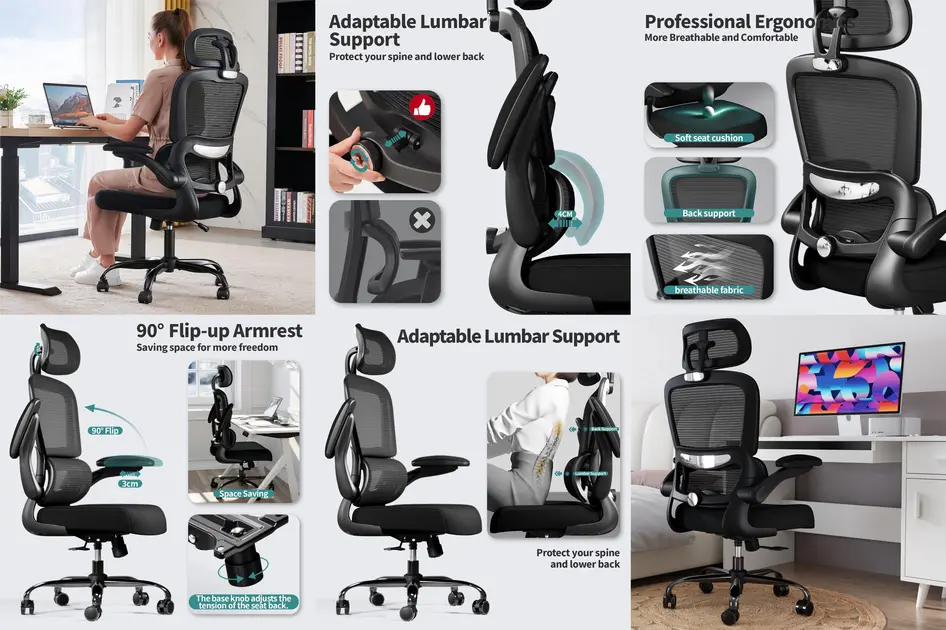
- Adjustable height so your feet stay flat on the floor and your knees sit roughly level with your hips.
- Lumbar support to maintain the natural curve of your lower back.
- Armrests that let your shoulders relax instead of hunching up.
- Seat depth that doesn’t press into the back of your knees.
This is genuinely one of the most common places people cut corners, and it’s usually the one they regret most. A dining chair might look fine for six months of casual use, but for eight hours a day, five days a week, your body will let you know it’s not built for that.
Computer: Desktop vs. Laptop
Desktops generally offer more power and easier upgrades for the same budget, while laptops win on flexibility if you need to move between rooms, coffee shops, or a co-working space. Many remote workers land on a hybrid setup: a laptop connected to an external monitor, keyboard, and mouse at their desk.
Monitor
- Size. 24–27 inches is the sweet spot for most desk setups without overwhelming your field of view.
- Dual monitors. Two screens can meaningfully cut down on window-switching if your job involves research, spreadsheets, or referencing documents while writing.
- Height positioning. The top third of your screen should sit roughly at eye level so you’re not tilting your neck down for hours.
Keyboard
- Ergonomic keyboards with a split or curved layout can help people who type frequently throughout the day.
- Wireless options help cut down on desk clutter, though battery management is a small trade-off to plan around.
Mouse
An ergonomic or vertical mouse keeps your wrist in a more neutral position compared to a flat, standard mouse, which can help if you notice wrist fatigue by the afternoon.
Webcam
If you’re on video calls regularly, your laptop’s built-in webcam usually isn’t great in low light. A dedicated webcam with better low-light performance makes a noticeable difference in how you come across.
Microphone
Clear audio matters more than people expect. A dedicated microphone with background noise reduction can make you sound significantly more professional than a laptop mic that also picks up your keyboard clicks and the dog barking next door.
Headphones
Noise-cancelling headphones help you focus in a noisy household and keep you from missing important details on calls.
Internet
- Speed. Reliable upload speed matters just as much as download speed for video calls.
- Backup internet. A mobile hotspot or backup connection can save you during an outage, especially before an important meeting.
Lighting
- Natural light first, whenever your setup allows it.
- Desk lamp for task lighting during darker hours.
- Ring light if you’re regularly on camera and want more even, flattering lighting.
Power Management
- Surge Protector Protects the devices you use against power surges.
- UPS (uninterruptible power supply) to keep your computer running briefly during a power outage, giving you time to save your work.
- Extension cords rated appropriately for your equipment, not just whatever was in the garage.
Cable Management
- Cable clips to keep cords off the floor and away from foot traffic.
- Cable sleeves to bundle multiple cords into one clean line.
- Under-desk trays to hide power strips and excess cable length entirely.
Storage
- Shelves for books, supplies, or decor that keeps the desk itself clear.
- Drawer units for anything you use daily but don’t want visible.
- File organizers if your work still involves any physical paperwork.
Desk Organization
- Pen holders and small trays for the everyday items you actually reach for.
- Notebook for quick notes without switching apps.
- Monitor riser to get your screen to the right height while adding storage space underneath.
Ergonomics Checklist
This is where a lot of long-term comfort actually comes from, and it costs nothing to fix.
- Monitor height: top of the screen at or slightly below eye level.
- Elbow angle: roughly 90 degrees when typing.
- Wrist position: neutral, not bent up or down, while typing.
- Feet placement: flat on the floor or on a footrest.
- Posture: back supported, shoulders relaxed, not turned forward.
- Eye level: screen about an arm’s length away.
The American Optometric Association recommends the 20-20-20 rule for digital eye strain: every 20 minutes, look at something roughly 20 feet away for 20 seconds. It’s a small habit, but it adds up over an eight-hour workday.
Productivity Tools
You don’t need ten apps for this. You need one solid tool in each of these categories:
- Task management to track what needs to get done and by when.
- Calendar to protect focus time and avoid meeting overload.
- Note-taking for quick capture of ideas, meeting notes, and to-dos.
- Password manager so you’re not reusing the same password everywhere.
- Cloud storage for backup and easy access across devices.
- Communication apps for chat, video calls, and async updates with your team.
Pick tools that integrate well with each other, and resist the urge to switch systems every few months. Consistency usually beats “perfect” here.
Video Meeting Setup
Before your next big call, run through this quick list:
- Camera positioned at eye level, not looking up your nose or down at your forehead.
- Light source in front of you, not behind you.
- Background tidy or use a simple virtual background.
- Microphone tested, background noise minimized.
- Notifications silenced so a random ping doesn’t interrupt you mid-sentence.
Cleaning & Maintenance Checklist
Weekly
- Wipe down desk, keyboard, and mouse.
- Clear physical clutter and loose papers.
- Empty the trash bin near your desk.
Monthly
- Dust monitor, cables, and behind equipment.
- Check cable connections for wear.
- Clean webcam lens and screen surfaces.
Quarterly
- Inspect chair mechanisms (hydraulics, wheels, armrests) for wear.
- Check surge protector and power strips for damage.
- Reassess whether your setup still fits how you actually work.
Home Office Safety Checklist
- Electrical safety: avoid overloading outlets, and don’t daisy-chain multiple power strips together.
- Fire safety: keep space heaters away from paper, curtains, or furniture, and never leave them running unattended.
- Cable safety: keep cords out of walkways to prevent trip hazards.
- Ventilation: make sure equipment has airflow around it, and the room itself isn’t stuffy or overheated.
Printable Home Office Setup Checklist
Copy this list and check off each item as you go:
- Desk
- Chair
- Monitor
- Keyboard
- Mouse
- Lighting
- Internet (primary + backup)
- Webcam
- Microphone
- Cable management
- Storage
- Ergonomic setup (monitor height, chair, keyboard position)
- Backup power (surge protector / UPS)
- Desk organization
- Productivity apps
Common Mistakes
- Skipping the chair upgrade. People spend on tech and ignore the one thing they sit in for 8 hours a day.
- Working from the couch or bed long-term. Fine occasionally, rough on your posture as a daily habit.
- Ignoring monitor height, leading to constant neck strain.
- Overloading power strips instead of using a proper surge protector.
- No backup internet plan, which turns an outage into a real crisis.
- Cluttered cables everywhere, creating both a mess and a trip hazard.
- Poor lighting on video calls, which reads as unprofessional even when the work itself is great.
- Buying everything at once instead of upgrading based on actual pain points.
- No dedicated workspace, which blurs the line between “home” and “work” all day.
- Forgetting maintenance, so gear wears out faster or stops working reliably.
- Ignoring eye strain, skipping breaks, and staring at a screen for hours straight.
Budget Setup Suggestions
Under $300
First, focus on the basics that will protect your body: an ergonomic chair (even if it costs a little more) and the proper monitor height with a stand or riser. Give a basic desk light and cable ties. Forget about 2 screens and high-end audio equipment for now.
Under $700
Add a proper external monitor, a mechanical or ergonomic keyboard, and a dedicated webcam or microphone. This is usually the range where video call quality jumps noticeably.
$1,500+
This is where a standing desk, a higher-end ergonomic chair, dual monitors, a monitor arm, and a full cable management system come together. At this level, focus on long-term durability and comfort rather than adding more gadgets.
Whatever your budget, the order of priority stays roughly the same: chair and ergonomics first, then monitor and input devices, then audio/video quality, then organization and extras.
Conclusion
Building the perfect home office doesn’t happen in a single weekend, and it doesn’t need to. Use this complete home office setup checklist as your roadmap, and tackle it one piece at a time. Fix your chair and monitor height first. Then concentrate on illumination, wire management and audio quality. Hold off on major expenditures, like a standing desk or twin monitors, until you’ve acquired a good idea of what you truly need.
It’s hardly a Pinterest-perfect office arrangement. It’s a workspace that supports your health, your focus, and your day-to-day work without getting in the way.
Ready to upgrade piece by piece? Check out our other guides on Gear for Remote for specific product recommendations as you work through your own checklist.
Disclaimer : This post contains affiliate links. This means we may earn a commission should you chose to sign up for a program or make a purchase using these links. There is no added cost to you but your purchase through these links helps support our content. Check out our disclaimer and disclosure page for more details.
FAQs
What is essential for a home office setup?
At minimum, you need a stable desk, a supportive chair, a properly positioned monitor, reliable internet, and adequate lighting. Everything else is an upgrade on top of that foundation.
How much does a good home office cost?
A functional, ergonomic setup can be built for under $300 if you prioritize carefully, though a more complete setup with dual monitors and premium furniture often runs $1,000 or more.
Do I need an ergonomic chair?
You don’t strictly need a specialty ergonomic chair, but you do need one with adjustable height, lumbar support, and proper seat depth if you’re sitting for most of the workday.
What desk size is best for remote work?
Most people find a desk that’s between 48 and 60 inches wide to be suitable and offers enough room for a monitor, keyboard and some extra space without feeling cramped.
Is a standing desk worth it?
There’s no hard and fast rule, but it helps many individuals break up extended periods of sitting. It’s more of a comfort and mobility boost than a must-have.
How can I improve home office ergonomics?
Start with monitor height at eye level, elbows near 90 degrees, feet flat on the floor, and a chair that supports your lower back. These four changes cost little to nothing and make the biggest difference.
What internet speed is recommended for video meetings?
Most video conferencing platforms recommend a stable connection with decent upload speed, not just download speed, since your outgoing video and audio depend on it.
How often should I upgrade home office equipment?
There is no timetable. A good rule of thumb is to upgrade when something is actively causing discomfort or clearly slowing you down, rather than on a set schedule.

Hi, I am Jiyauddin. Freelance veteran with 20+ years of experience across computer operations, graphic design, and digital marketing. At GearForRemote.com, I share actionable guides, tech reviews, and proven workflows to help remote workers elevate their digital productivity.