
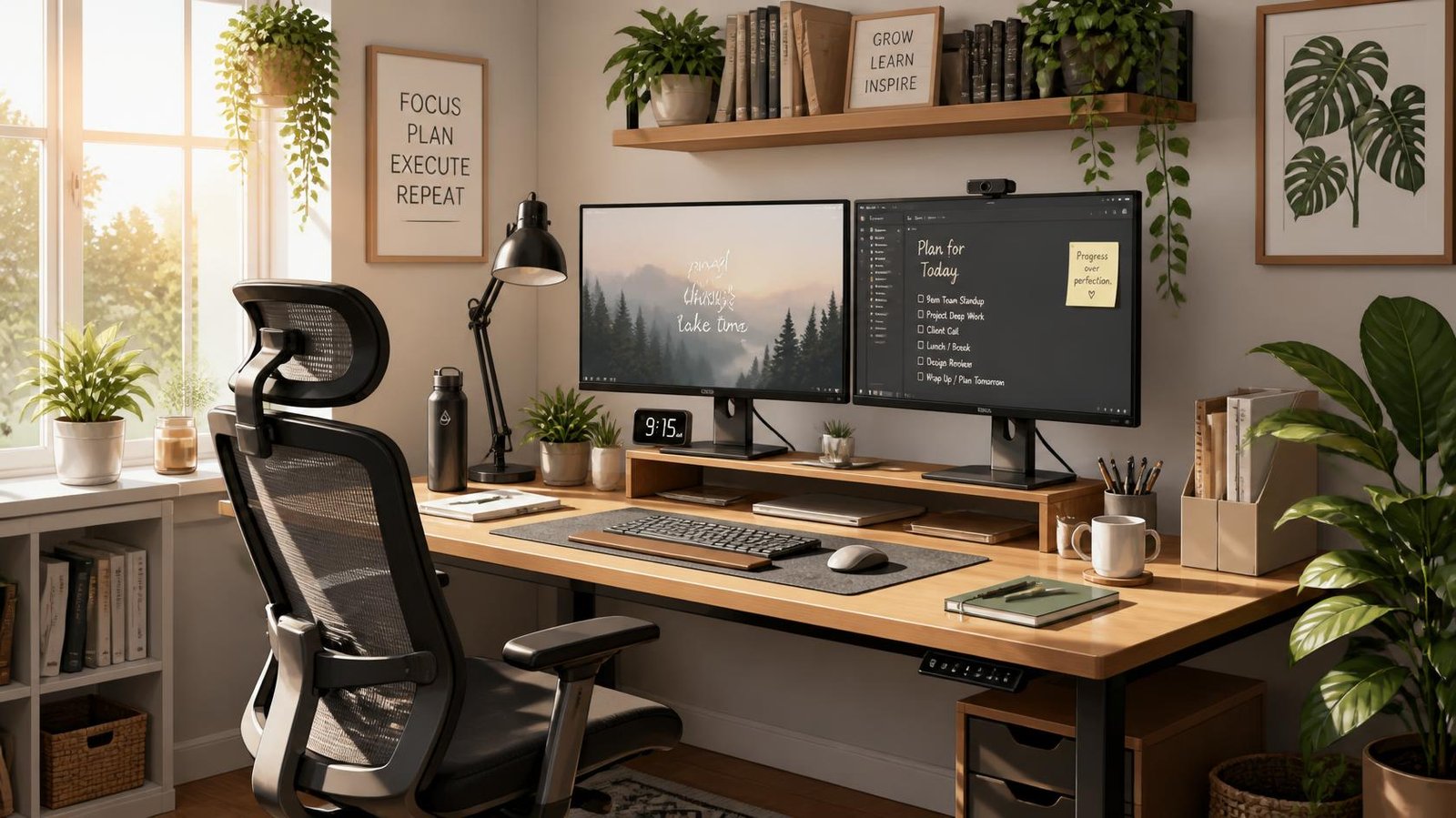
This ultimate guide to building a remote work setup to optimize your physical workspace for a remote job setup. Your setup influences how your body feels at the end of the day, how professional you appear on video calls, the stability of your internet connection during client presentations, and how long you can sustain a remote or hybrid career without placing undue strain on your back, wrists, or eyes.
This guide covers everything needed to create a home office setup—from furniture and ergonomics to internet connectivity, security, lighting, and accessories. It is designed to let you build your setup gradually, whether your budget is $200 or $5,000; you don’t need to buy everything at once. Ergonomics experts and remote-work communities consistently emphasize that an excellent home office setup is built by adding items one by one over several months, rather than purchasing everything in a single go.
This guide provides practical, reliable information based on the insights and experiences of ergonomics experts, health organizations, and thousands of remote workers.
The fundamentals of a productive workspace remain the same, whether you are a freelancer, digital nomad, hybrid worker, or someone working from home. Of course, individual needs and budgets will vary.
Table of Contents
What Is a Remote Work Setup?
A remote work setup is the complete combination of furniture, technology, and environment that lets you do your job from home (or anywhere) as effectively as you could from a corporate office — ideally more effectively.
It has four components that all matter together:
- Furniture: desk, chair, and anything that supports your body for hours at a time
- Technology: monitor, keyboard, mouse, webcam, microphone, and networking
- Environment: lighting, noise, temperature, and air quality
- Systems: cable management, security practices, and maintenance habits
None of these work in isolation. A $2,000 monitor won’t fix a chair that wrecks your lower back. A great chair won’t help if your internet drops mid-meeting. The goal of this guide is to help you build all four layers in the right order.
Remote work removed the built-in ergonomic guardrails of a corporate office. Most offices, at minimum, provide an adjustable chair, a proper desk height, and decent overhead lighting. At home, you’re on your own — and it’s easy to underestimate how much that matters until your wrists, neck, or lower back start complaining.
Why Your Workspace Matters
The Occupational Safety and Health Administration (OSHA) and the National Institute for Occupational Safety and Health (NIOSH) have both published long-standing guidance on office ergonomics, centered on neutral body posture: wrists straight, elbows near 90 degrees, feet flat, and screens at eye level. These aren’t arbitrary rules — they exist because sustained awkward postures are strongly associated with musculoskeletal strain over time.
Beyond physical health, your setup affects how you’re perceived. A dim, cluttered background on a video call sends a different signal than a clean, well-lit one — fair or not, remote workers are often evaluated partly on how “put together” their presence appears on camera. This is one of the most frequently repeated observations across remote-work communities: people who invest in even basic lighting and camera positioning report noticeably different reactions in client and leadership-facing meetings.
Benefits of a Proper Setup
A well-built home office setup pays off in several concrete ways:
- Fewer aches and less fatigue from correct desk and monitor height
- Better focus from reduced physical discomfort and fewer distractions
- More professional video presence, which matters for client calls, interviews, and performance reviews
- More reliable connectivity, avoiding the embarrassment (and productivity loss) of dropped calls
- Long-term cost savings, since durable furniture and equipment outlasts cheap replacements
- Better boundaries between work and home life, especially when the workspace is a defined zone rather than a laptop that migrates around the house
Planning Your Workspace
Before buying anything, spend 15 minutes actually planning. This step is the one most people skip, and it’s the reason so many home offices end up as a pile of mismatched purchases.
Ask yourself:
- How many hours a day will I realistically spend at this desk?
- Do I take frequent video calls, or mostly heads-down work?
- Is this a permanent room, or a shared/multi-use space?
- What’s my total budget, and over what timeframe?
- Do I need portability (digital nomad) or permanence (dedicated office)?
Pro Tip: Measure your space before you shop. A desk that looks reasonably sized online can overwhelm a small bedroom corner. Use painter’s tape on the floor to mock up your desk footprint before buying.
Choosing the Right Location
Not everyone has a spare room, and that’s fine — a good setup can exist in a corner of a bedroom or living room. What matters more than square footage is:
- Natural light access — ideally a window to the side of your desk, not directly behind or in front of your screen
- Wall proximity to your router, or a plan for a wired/mesh connection
- Noise isolation — away from kitchens, hallways, or shared living spaces if possible
- Door or visual separation, even a room divider, to signal “work mode” to yourself and others in the house
If you’re a digital nomad or frequently relocate, prioritize gear that’s modular and doesn’t require permanent installation — more on that in the budget section.
For hybrid workers splitting time between a corporate office and home, it’s worth deliberately matching your home setup to your office setup where it’s practical — same general monitor height, similar keyboard feel, similar chair support. The less your body has to readjust between environments each week, the less cumulative strain you carry.
For digital nomads and frequent movers, permanence isn’t realistic, so the priority list shifts. A portable laptop stand, a compact travel-friendly external keyboard, and a pair of good noise cancelling headphones typically deliver more day-to-day value than furniture that can’t travel with you. Look for coworking spaces or cafes with reliable wired internet access as a backup plan for important calls, since hotel and cafe WiFi quality varies widely. A portable monitor (roughly 13–15 inches, USB-C powered) is a popular middle ground for nomads who want a second screen without checked-bag-sized luggage.
For beginners setting up a first workspace, resist the urge to buy everything in the first week. Live with a minimal setup — desk, chair, laptop — for two or three weeks first. That period tells you far more about your actual pain points (Is your neck sore? Is your WiFi weak in that room? Do you need a second monitor or just better lighting?) than any generic checklist can, and it prevents money spent on upgrades you didn’t actually need.
Desk Selection Guide
Your desk is the foundation everything else sits on — literally. When choosing one, consider:
Size: Bigger isn’t always better. Match desk size to your actual gear and room.
| Desk Size | Best For |
| 40–48″ wide | Single monitor, laptop-only setups, small rooms |
| 48–60″ wide | Dual monitor setups, standard home offices |
| 60–72″+ wide | Multi-monitor, dual-purpose desks (work + hobby), corner/L-shaped rooms |
Depth: At least 24 inches is recommended so your monitor isn’t uncomfortably close to your face.
Material: Laminate is budget-friendly and durable; solid wood is heavier and more premium but pricier; bamboo is a common eco-conscious middle ground.
Shape: Rectangular desks suit most single-monitor and dual-monitor setups. L-shaped desks work well if you need separate zones for a laptop and paperwork, or want room for a printer or secondary device.
Weight capacity: If you’re mounting a monitor arm or running dual monitors, check the desk’s stated weight limit — this is especially important for standing desks.
Standing Desk vs Traditional Desk
This is one of the most common upgrade decisions remote workers face, and it depends entirely on your work pattern and health considerations.
Who benefits most from a standing desk:
- People who sit for 6+ hours a day with few breaks
- Anyone with existing lower back discomfort (with a doctor’s input)
- People who want to alternate posture throughout the day rather than sit continuously
Who can skip it:
- People who already take frequent walking breaks
- Those on a tight starter budget — a good chair matters more first
- Anyone in a small space where a sit-stand desk’s footprint or cost isn’t justified yet
Health organizations like the CDC and Mayo Clinic have published general guidance encouraging people to break up long periods of sitting with movement throughout the day — a standing desk is one tool for that, but not the only one. Simply setting a timer to stand and stretch every 45–60 minutes achieves a similar goal at zero cost.
A pattern that comes up often among remote workers who’ve made the switch: the desk itself doesn’t create the benefit — the habit of actually alternating positions does. Remote-work communities frequently report that a standing desk left in the “down” position all day delivers no more benefit than a fixed desk, while workers who set reminders to switch positions every hour describe noticeably less end-of-day stiffness.
Buying considerations for standing desks:
- Electric (motorized) vs manual crank — electric is faster and more convenient, especially if you switch positions often
- Weight capacity — matters if you run dual monitors or a monitor arm
- Height range — check it fits your actual height, especially if you’re on the taller or shorter end
- Stability at full height — cheaper standing desks can wobble, which is worse for typing and drawing on a tablet
Office Chair Buying Guide
If you upgrade only one thing in your entire remote work setup, make it your chair. You’ll spend more cumulative hours in it than with any other single piece of equipment.
Key features to look for:
| Feature | Why It Matters |
| Adjustable seat height | Lets you match desk height for proper elbow angle |
| Lumbar support (adjustable) | Supports the natural inward curve of your lower back |
| Adjustable armrests | Prevents shoulder strain; should let forearms rest level with the desk |
| Seat depth adjustment | Ensures 2–4 inches of clearance behind the knee |
| Breathable material (mesh or high-quality fabric) | Prevents heat buildup during long sessions |
| Tilt/recline lock | Lets you vary posture without losing support |
| Weight rating | Should comfortably exceed your body weight for safety and durability |
Who needs a premium ergonomic chair: Anyone who spends 6+ hours a day sitting. Especially those with a history of back or hip pain.
Who can start with a budget chair: Part-time remote workers, or anyone in the first few months of remote work who wants to test the waters before investing $300–$900 in a premium chair.
Common buying mistake: Choosing a chair based on looks (leather executive chairs look impressive but often lack real adjustability) rather than adjustability and support. This is one of the most frequently reported regrets in home-office and remote-work communities — people who bought a chair for its appearance often report replacing it within a year once the lack of real lumbar and depth adjustment starts to show.
Monitor Buying Guide
An external monitor is one of the highest-value upgrades for remote workers using a laptop, since laptop screens force a hunched, too-close viewing posture.
Size and resolution:
| Monitor Size | Common Resolution | Best For |
| 24″ | 1080p (Full HD) | Budget setups, single-task focus work |
| 27″ | 1440p (QHD) | Most popular all-around choice, good text clarity |
| 32″+ | 4K (UHD) | Design, video editing, spreadsheet-heavy work |
| Ultrawide (34″+) | 1440p/UWQHD | Multitasking without needing two separate monitors |
Other specs that matter:
- Refresh rate: 60Hz is fine for office work; 75Hz+ is a nice-to-have, not essential for most remote jobs
- Panel type: IPS panels offer better color and viewing angles than TN panels — worth the small premium
- Height/tilt adjustability: A monitor that doesn’t adjust to eye level defeats much of the ergonomic benefit
- Blue light reduction / flicker-free tech: Helps reduce eye strain during long sessions
Buying mistake to avoid: Chasing 4K resolution on a small screen where you won’t perceive much benefit, while ignoring stand adjustability — a monitor you can’t raise to eye level causes more strain than the resolution ever fixes. Ergonomics specialists commonly flag stand adjustability as the more important spec of the two, precisely because resolution differences are far less noticeable in daily use than a screen sitting several inches too low.
Single vs Dual Monitors
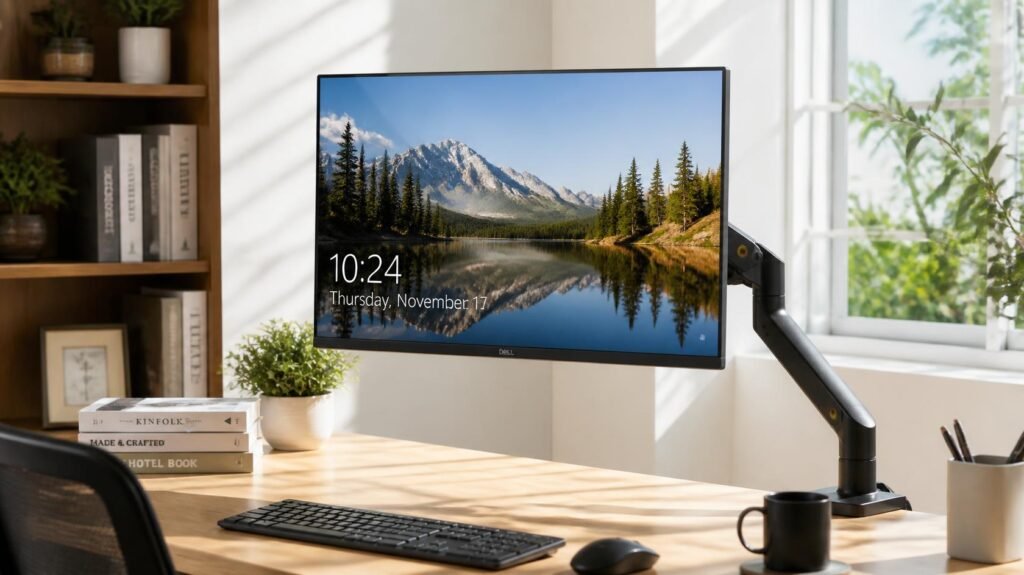
Single monitor works well for: Writers, customer support roles, most meeting-heavy jobs, and anyone in a small workspace.
Dual monitors work well for: Developers, analysts, designers, anyone frequently referencing one document while working in another, and multitaskers who lose time constantly alt-tabbing between windows.
An underrated middle ground is a single large ultrawide monitor, which offers dual-monitor-style multitasking space without the bezel gap or the extra desk footprint of two separate monitors.
Laptop Stand
If you work primarily off a laptop — even alongside an external monitor — a laptop stand is a small, inexpensive upgrade with an outsized ergonomic payoff. It raises the laptop screen to eye level and, paired with an external keyboard and mouse, eliminates the classic “laptop neck” hunch.
Types:
- Fixed-height stands: Cheapest, most stable, no moving parts to fail
- Adjustable stands: More flexible for shared desks or multiple users
- Foldable/portable stands: Best for digital nomads who need something that packs flat
Anyone using a laptop as a secondary display alongside a monitor, or as their only screen, should pair a stand with an external keyboard and mouse — using a raised laptop without an external keyboard just moves the strain from your neck to your wrists.
Mechanical Keyboard vs Membrane
| Mechanical Keyboard | Membrane Keyboard | |
| Feel | Tactile, distinct keystrokes | Softer, mushier feel |
| Durability | Typically rated for tens of millions of keystrokes | Shorter lifespan, cheaper materials |
| Noise | Can be loud (varies by switch type) | Generally quieter |
| Price | $60–$200+ | $15–$50 |
| Best for | Heavy typists, programmers, writers | Casual use, open-plan or shared spaces where noise matters |
If you’re on video calls often, consider quieter mechanical switches (often labeled “silent” or “linear”) rather than the loud, clicky varieties that can be distracting to coworkers on a call.
Best Mouse Types
- Standard wired/wireless mouse: Fine for general use, most affordable
- Ergonomic vertical mouse: Reduces forearm rotation strain, worth considering if you experience wrist or forearm discomfort
- Trackball mouse: Stationary design, good for very limited desk space
- Trackpad: A reasonable option for light use, though less precise for extended data work
Regardless of type, prioritize one with adjustable DPI and a comfortable grip size for your hand — a mouse that’s too small forces a pinch grip that fatigues your hand over long sessions.
Webcam Guide
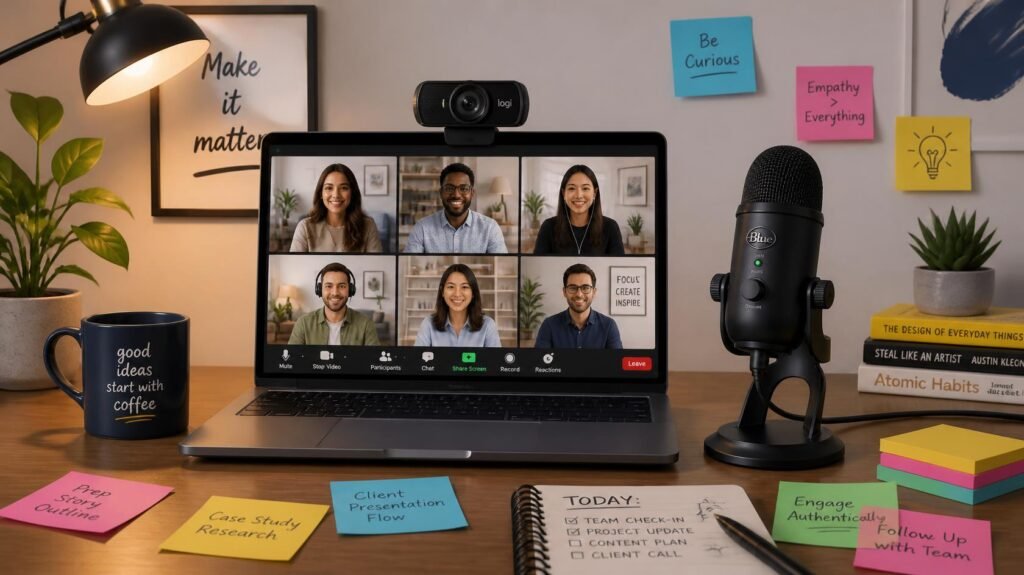
Most built-in laptop webcams are mediocre — often 720p, poorly positioned, and unflattering. An external webcam is a low-cost, high-impact upgrade for anyone on frequent video calls.
What to look for:
- 1080p minimum, 4K if you want future-proofing
- Good low-light performance — more important than raw resolution for most home offices
- Adjustable field of view — narrower FOV looks more professional than a wide-angle “conference room” look
- Mounting flexibility — should clip securely to your monitor or stand
Who needs one: Anyone in client-facing roles, sales, recruiting, teaching, or frequent leadership-facing meetings.
Who can skip it: Occasional internal meeting attendees where a solid laptop webcam already does the job.
Microphone Guide
Audio quality affects perceived professionalism more than video quality does — people will forgive a slightly grainy picture far more readily than they’ll tolerate garbled or echoey audio.
Options:
| Type | Best For |
| USB condenser mic | Most remote workers; plug-and-play quality upgrade |
| Headset mic | Simplicity, decent noise rejection, budget-friendly |
| Lavalier (clip-on) mic | Mobility, presentations where you’re moving |
| XLR mic + audio interface | Podcasters, content creators, highest quality ceiling |
If you do nothing else, get a dedicated mic with a pop filter or built-in foam windscreen, and enable noise suppression in your video platform’s audio settings — both dramatically improve perceived call quality at minimal cost. Audio is consistently the top complaint raised in remote-work and video-conferencing communities, well ahead of video quality, which is why specialists in this space tend to recommend upgrading the mic before the webcam.
Headphones Guide
Noise cancelling headphones solve two problems at once: they block distracting background noise for you, and (with a good mic) prevent your environment’s noise from bleeding into calls.
Considerations:
- Wired vs wireless: Wireless offers freedom of movement; wired avoids battery anxiety and Bluetooth latency
- Over-ear vs on-ear: Over-ear is generally more comfortable for multi-hour wear
- Active noise cancelling (ANC): Valuable in shared or noisy households; less necessary in a quiet dedicated office
- Multipoint Bluetooth: Useful if you switch between laptop and phone calls frequently
Lighting Guide
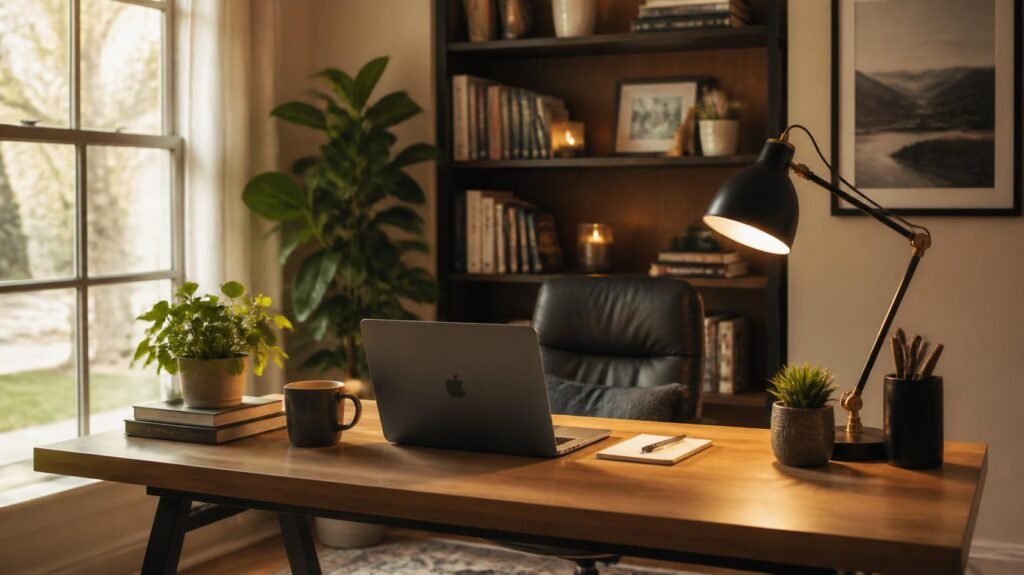
Lighting affects both how you look on camera and how tired your eyes feel by end of day.
Natural Light
Position your desk so a window is to your side, not directly behind you (which silhouettes you on camera) or directly in front of you (which causes glare and eye strain). Natural side light is the single best free upgrade to your video presence.
Desk Lamps
A warm-to-neutral color temperature (around 3000K–4000K) is generally more comfortable for long sessions than harsh cool-white light. Adjustable brightness lets you adapt across the day as natural light changes.
Ring Lights
Useful for consistent, flattering video call lighting, especially in rooms with poor natural light or inconsistent overhead lighting. A small ring light or key light clipped to a monitor is often more practical than a large tripod-mounted one in tight home offices.
| Lighting Type | Best Use Case | Approx. Cost |
| Natural window light | Free, best quality (with correct positioning) | $0 |
| Desk lamp (adjustable) | General task lighting | $20–$60 |
| Ring light / key light | Consistent video call lighting | $30–$120 |
| Smart bulbs | Adjustable color temperature throughout the day | $15–$50 |
Internet Requirements
Unreliable internet undermines every other investment in your setup. Here’s what to actually target.
| Use Case | Recommended Download Speed | Recommended Upload Speed |
| Email, browsing, light tasks | 25 Mbps | 3 Mbps |
| Standard video calls (Zoom, Meet, Teams) | 50 Mbps | 10 Mbps |
| HD video calls + cloud file syncing | 100 Mbps | 20 Mbps |
| Heavy multitasking, large file uploads, multiple household users | 200+ Mbps | 30+ Mbps |
Router placement: Central to your home, elevated, away from thick walls and large metal objects (like refrigerators), and away from other electronics that cause interference (microwaves, cordless phones).
Mesh WiFi: Worth it for larger homes or homes with dead zones — a single router often can’t reach a converted garage office or a far bedroom reliably.
Ethernet: For video calls and any bandwidth-sensitive work, a wired ethernet connection to your desk is more reliable than WiFi, even good WiFi. If running a cable isn’t practical, a powerline adapter (which sends data over your home’s electrical wiring) is a reasonable middle ground.
Quick Win: If your video calls occasionally freeze or your voice cuts out, testing a wired ethernet connection is often the single highest-impact fix — more effective than most hardware upgrades. This is one of the most commonly repeated troubleshooting tips shared across remote-work forums, and it’s usually the first thing IT specialists suggest before recommending a plan upgrade.
Power Backup
A brief power flicker can knock you offline mid-call or corrupt unsaved work. Two devices worth having:
- Surge protector: Cheap insurance against power spikes damaging your electronics. Every remote office should have one — it’s one of the lowest-cost, highest-value purchases on this list.
- UPS (Uninterruptible Power Supply): Battery backup that keeps your router, modem, and computer running through short outages, giving you time to save work and finish a call gracefully. Worth prioritizing if you live somewhere with frequent outages or storms.
Cable Management
A tangled mess of cables isn’t just unsightly — it’s a tripping hazard and makes troubleshooting connection issues far harder.
Practical steps:
- Use cable sleeves or raceways to bundle cords running from desk to wall
- Mount a power strip under the desk with adhesive clips to keep it off the floor
- Label cables at both ends if you frequently swap peripherals
- Use a desk grommet (a hole with a cover) if your desk supports one, to route cables cleanly through the desktop
Desk Organization & Storage
- Drawer organizers for small supplies (pens, cables, adapters)
- Vertical file holders to keep paperwork off the desk surface
- Under-desk storage bins or rolling carts for supplies you need occasionally but not daily
- Wall-mounted shelving to free up desk surface area entirely, especially valuable in small rooms
Productivity Accessories
| Accessory | Purpose |
| Whiteboard | Visual planning, brainstorming, quick notes visible during calls |
| Docking station | Single-cable connection for monitor, peripherals, and charging (especially useful for laptop-based hybrid workers) |
| USB hub | Expands limited ports on modern slim laptops |
| Monitor arm | Frees desk space, allows precise height/angle adjustment beyond a fixed stand |
| Footrest | Supports proper leg angle for shorter users whose feet don’t rest flat |
| Wrist rest | Reduces pressure points during long typing sessions (used correctly — resting between typing, not while actively typing) |
| Document holder | Keeps reference material at eye level instead of flat on the desk, reducing neck strain |
| Desk mat | Protects the desk surface and defines a mouse/keyboard zone |
Environment: Air, Noise, Temperature, Plants
Air quality: Poor ventilation in a closed home office can contribute to fatigue and headaches over a full workday. A small air purifier or simply cracking a window periodically helps, especially in smaller rooms.
Noise reduction: Soft furnishings (rugs, curtains, upholstered chairs) absorb sound and reduce echo, which also improves your call audio quality. Foam acoustic panels are a low-cost upgrade if your room has hard, echoey surfaces.
Room temperature: Most people focus best in a range of roughly 68–72°F. A small space heater or fan lets you fine-tune your specific room independent of the rest of the house.
Plants: Beyond aesthetics, a plant or two adds visual warmth to video call backgrounds and can make a small room feel less sterile. Low-maintenance options like pothos or snake plants are popular for home offices since they tolerate inconsistent light and watering.
Video Call Setup: Zoom, Meet, Teams
Regardless of platform, the fundamentals are the same:
- Camera at eye level, roughly arm’s length away
- Light source in front of you, never strongly behind you
- Plain or tidy background — a blurred background feature works, but a genuinely tidy physical background usually looks more natural
- Mic positioned consistently, with background noise suppression enabled in-app
Zoom: Enable “HD video” and “Touch up my appearance” in video settings if desired; use “Original Sound” only for music/high-fidelity needs, otherwise leave Zoom’s built-in noise suppression on.
Google Meet: Check the noise cancellation toggle under audio settings; Meet’s auto-framing feature can help keep you centered if you move during calls.
Microsoft Teams: Use “Standard” or “High fidelity” noise suppression depending on your environment; background blur or custom backgrounds are under video settings before joining a call.
Cybersecurity Essentials
Remote work means your home network is now part of your employer’s security perimeter, whether or not that’s officially acknowledged. A few essentials:
- VPN: Encrypts your traffic, particularly important on public WiFi (cafes, coworking spaces, airports) and often required by employers for accessing internal systems.
- Password manager: Generates and stores strong, unique passwords per account, removing the need to reuse or memorize weak ones.
- Two-factor authentication (2FA): Adds a second verification step beyond your password — one of the single most effective account-security measures available, according to widely cited guidance from major platforms like Google and Microsoft.
- Backup strategy: Follow the general “3-2-1” principle — three copies of important data, on two different media types, with one copy off-site (often cloud storage).
- Cloud storage: Beyond backup, cloud storage (Google Drive, OneDrive, Dropbox, etc.) enables safer collaboration than emailing files back and forth.
Update your router’s firmware periodically, change default admin credentials, and use WPA3 encryption (or WPA2 at minimum) on your home WiFi.
Cleaning and Maintenance
Monthly Maintenance Checklist
- Dust monitor, keyboard, and desk surfaces
- Check and organize cable routing
- Clean keyboard crevices (compressed air or a soft brush)
- Wipe down chair armrests and headrest
- Check webcam lens for smudges or dust
- Test backup/UPS battery health if applicable
- Review and clear desk clutter
- Confirm router/firmware updates are current
- Empty and clean any air purifier filters
- Water desk plants and check for pests
Budget Setup Recommendations
Build in stages. Below is a general framework — actual prices vary by brand and region, so treat these as planning ranges rather than fixed quotes.
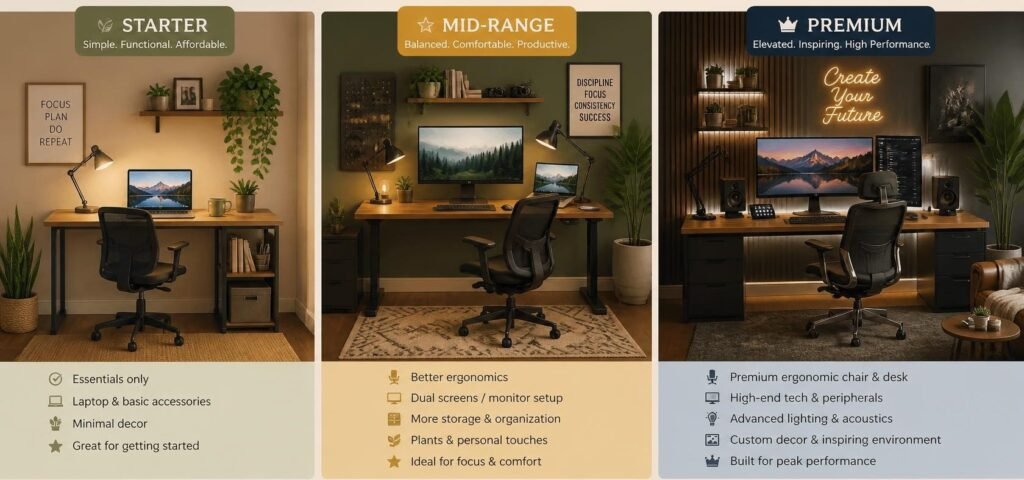
Starter Setup (~$500)
- Budget ergonomic chair
- Basic adjustable desk (non-motorized)
- 24″ 1080p monitor
- External keyboard and mouse
- Basic webcam and headset
- Desk lamp
- Surge protector
Mid-Range Setup (~$1,500)
- Mid-tier ergonomic chair with adjustable lumbar support
- Manual or entry-level electric standing desk
- 27″ 1440p monitor (or dual 24″ monitors)
- Mechanical keyboard + ergonomic mouse
- Dedicated 1080p webcam + USB condenser mic
- Noise cancelling headphones
- Monitor arm
- Basic mesh WiFi point
- UPS unit
Premium Setup ($3,000+)
- Premium ergonomic chair (adjustable in every dimension)
- Electric standing desk with memory presets
- Dual 27″+ monitors or single ultrawide 4K display
- High-end mechanical keyboard + vertical ergonomic mouse
- 4K webcam + XLR mic and audio interface
- Premium ANC headphones
- Full mesh WiFi network + wired ethernet run
- Docking station
- Acoustic panels + ring/key light
- UPS + surge protection throughout
| Tier | Approx. Budget | Core Focus |
| Starter | $500 | Basic ergonomics + functional video calls |
| Mid-Range | $1,500 | Comfort, dual displays, reliable networking |
| Premium | $3,000+ | Full ergonomic optimization, professional-grade AV |
Mistakes to Avoid
These are the mistakes that come up most often in remote-work communities, buying guides, and ergonomics guidance — the ones people report regretting after a few months of hands-on use:
- Buying the monitor before the chair. Ergonomics should come first; a great screen doesn’t fix a bad sitting posture.
- Ignoring desk and monitor height entirely, even with good furniture — a great chair set at the wrong height still causes strain.
- Skipping a wired ethernet test before assuming your WiFi is “just bad.”
- Over-investing in ANC headphones while ignoring the mic — most video call complaints are about audio clarity from the speaker’s end, not what they hear.
- Buying a standing desk before establishing a habit of actually using it — a $600 desk that stays lowered all day provides zero ergonomic benefit over a static desk.
- Neglecting cable management, which becomes a safety hazard and a source of ongoing frustration.
- Skipping basic cybersecurity steps because “it’s just a home office” — home networks are common attack targets precisely because they’re less protected than corporate ones.
- Choosing a desk based on aesthetics alone, without checking depth or weight capacity — a beautiful desk that can’t fit a monitor arm or wobbles under a keyboard becomes a daily irritation.
- Working from the couch or bed “temporarily” indefinitely — what starts as a short-term arrangement often becomes the default for months, quietly working against both posture and the mental separation between work and rest.
- Assuming louder speakers fix bad audio — turning up the volume doesn’t fix a muddy or distant-sounding microphone; the fix is proper mic placement and, if needed, a pop filter.
Expert Tips
The following tips reflect the Ultimate Guide to Building a Remote Work Setup guidance commonly given by ergonomics specialists echoed repeatedly across remote-work communities:
- Set your monitor’s top edge at or slightly below eye level, roughly an arm’s length away. This single adjustment resolves more neck strain complaints than almost any other single change, according to ergonomics specialists.
- If you can only upgrade one audio component, choose the microphone over the webcam. AV professionals and remote-work communities alike report that people tolerate mediocre video far more easily than poor audio.
- Test your video call setup (camera angle, lighting, mic) by recording a 30-second test clip and reviewing it, rather than guessing how you look and sound live — a habit frequently recommended by remote-work coaches and video professionals.
Future Upgrade Path
| Stage | Typical Next Upgrade |
| Just started remote work | External monitor + external keyboard/mouse |
| 1–3 months in | Better chair, proper desk height |
| 3–6 months in | Standing desk, dedicated webcam/mic |
| 6–12 months in | Dual monitors, monitor arm, mesh WiFi |
| 1 year+ | Premium ergonomic chair, full acoustic and lighting setup |
Beginner Checklist
- Defined workspace location with reasonable natural light
- Desk at correct height (or adjustable)
- Chair with basic lumbar support
- External monitor, keyboard, and mouse (if using a laptop)
- Wired ethernet or reliable WiFi tested for video calls
- Surge protector in place
- Password manager and 2FA enabled on core accounts
Workspace Audit Checklist
- Monitor top edge at or near eye level
- Elbows at roughly 90 degrees while typing
- Feet flat on floor or footrest
- Light source in front of you, not behind
- No glare on screen from windows or overhead lights
- Cables organized and out of walking paths
- Background tidy and appropriate for video calls
- Router positioned centrally, firmware up to date
Buying Checklist
- Measured desk space before purchasing
- Checked weight capacity for standing desk/monitor arm
- Verified chair adjustability (seat height, lumbar, armrests, depth)
- Confirmed monitor stand adjusts to eye level
- Considered noise level of mechanical keyboard for call environments
- Checked return policy on chair/desk before committing
Disclaimer : This post contains affiliate links. This means we may earn a commission should you chose to sign up for a program or make a purchase using these links. There is no added cost to you but your purchase through these links helps support our content. Check out our disclaimer and disclosure page for more details.
FAQs
What is the most critical equipment in remote work environment?
Ergonomics guidance typically puts the chair as the number one item to buy because it’s in constant contact with your body throughout the workday. Where possible, the two should be tackled together, as a desk at the wrong height only makes chair problems worse. Monitors, keyboards and accessories are important but they don’t take the same daily physical toll as your seat.
Do I really need a standing desk?
Sometimes not. Standing desks are good for people who sit for very long stretches without breaks, but the main health advice from organizations such as the CDC is to break up sitting time — which a timer and the discipline to stand periodically can also do without spending money. Standing desks can help, but they are not required.
What a good budget to start off with a home office setup?
A functional starter setup can be assembled for around $500, and includes a basic chair, an adjustable desk, monitor and peripherals. You don’t have to buy everything at once — many remote workers develop their setup over the course of 6-12 months, adding one piece at a time as needs and budget allow.
What internet speed do I actually need to work remotely?
For regular video calling, 50 Mbps download and 10 Mbps upload is sufficient. 100+ Mbps is good for heavier use – multiple household users, large file uploads or frequent HD video. If you’re having trouble with dropped calls, testing a wired ethernet connection is often more effective than upgrading your internet plan.
Do you need a mechanical keyboard?
Yes if you type for long sessions and want more tactile feedback and durability. Mechanical keyboards are usually rated for many more keystrokes than membrane keyboards. If you’re doing a lot of video calls, consider the quieter switch types – loud mechanical keys can distract others on the call.
Do I really need to upgrade if my laptop has a webcam already?
Built-in laptop webcams are usually lower resolution and poorly placed (generally below eye level, looking up at you). An external webcam, mounted at eye level, improves both the quality of the image and the angle you’re seen at, which is most important for client-facing or leadership-facing roles.
What is the correct monitor height?
As a general rule, the top of the screen should be at or slightly below eye level and the screen should be approximately an arm’s length away from your body. That helps prevent your neck from having to crane up and down for long periods of time.
How do I eliminate glare/reflection on my screen when I am on a call?
Rearrange your desk so that the windows are to the side, rather than directly behind or in front of your monitor. Matte screen protectors can help, too, and angling the monitor slightly downward often cuts down on overhead light reflections.
Do I need a VPN when working remotely?
A VPN is especially handy on public or shared WiFi networks where your traffic is more exposed, but many companies require one to access internal systems. Even without an employer requirement, it’s a reasonable general security practice for remote workers who travel or work from the public spaces.
Monitor arm vs monitor stand. What’s the difference?
A stand usually attaches to the desk in one footprint, but a monitor arm can be clamped to the edge of the desk to give more flexible adjustment of height, tilt and depth, as well as freeing up desk surface space underneath the screen.
How often do I need to clean my home office setup?
Most home offices are in decent shape with a monthly maintenance pass – dust surfaces, clean your keyboard, check cable routing, wipe your webcam lens. The more frequently used things, such as keyboards, might require more frequent light cleaning.
How to set up a good remote work space in a small bedroom?
Yes. choose a desk that fits your real space, a chair that is truly adjustable, not just a bulky “executive” style, and wall-mounted shelving to keep the desktop space clear. Corner desks are often good for smaller rooms.
What noise cancelling headphones features are actually useful?
Most important for remote work: good active noise cancelling (ANC), comfort for many hours, and microphone clarity. Battery life and Bluetooth multipoint support are nice secondary features if you switch devices a lot.
Do I need a laptop stand if I have an external monitor?
Yes, if the laptop is left open as a secondary screen. An open laptop without a stand, on the other hand, sits at a variable, often too-low height next to a monitor; this can contribute to neck strain even if the main monitor is well-positioned.
How can I tell if my internet problems are WiFi or my provider?
Testing with a direct ethernet connection is the quickest way to isolate the problem. If the call quality is substantially better over ethernet, the problem is probably WiFi interference, router placement or network congestion, not your internet plan.
How do I backup my work in the safest way?
The most common approach is the 3-2-1 rule – 3 total copies of your data, 2 different media types, with at least one off-site copy – often a local backup and cloud storage service today.
Should I get a UPS and surge protector?
Their aims are different. A surge protector prevents damaging voltage spikes from reaching your equipment, and a UPS also provides battery backup power during outages, allowing you to save work and exit calls gracefully. A surge protector is basically a bare minimum. A UPS is a nice addition if you get frequent outages in your area.
Which color temperature is best for a desk lamp?
A neutral to warm spectrum (somewhere around 3000K-4000K) is generally more comfortable for extended work than cooler, bluer light that can feel more harsh after many hours.
What can I do to make my video call background more professional without redecorating?
Clear clutter directly behind you, add a plant or simple artwork for visual interest and make sure your lighting is even rather than one-sided. If physical cleanup is not an option, platform-based background blur makes sense as a fallback.
What should I upgrade first if I only have enough to upgrade one thing this month?
For most people starting out, the most immediate gain in ergonomics and productivity per dollar is an external monitor plus a keyboard and mouse (if working off a laptop), followed closely by chair improvements if the current seating is genuinely uncomfortable.

Hi, I am Jiyauddin. Freelance veteran with 20+ years of experience across computer operations, graphic design, and digital marketing. At GearForRemote.com, I share actionable guides, tech reviews, and proven workflows to help remote workers elevate their digital productivity.