
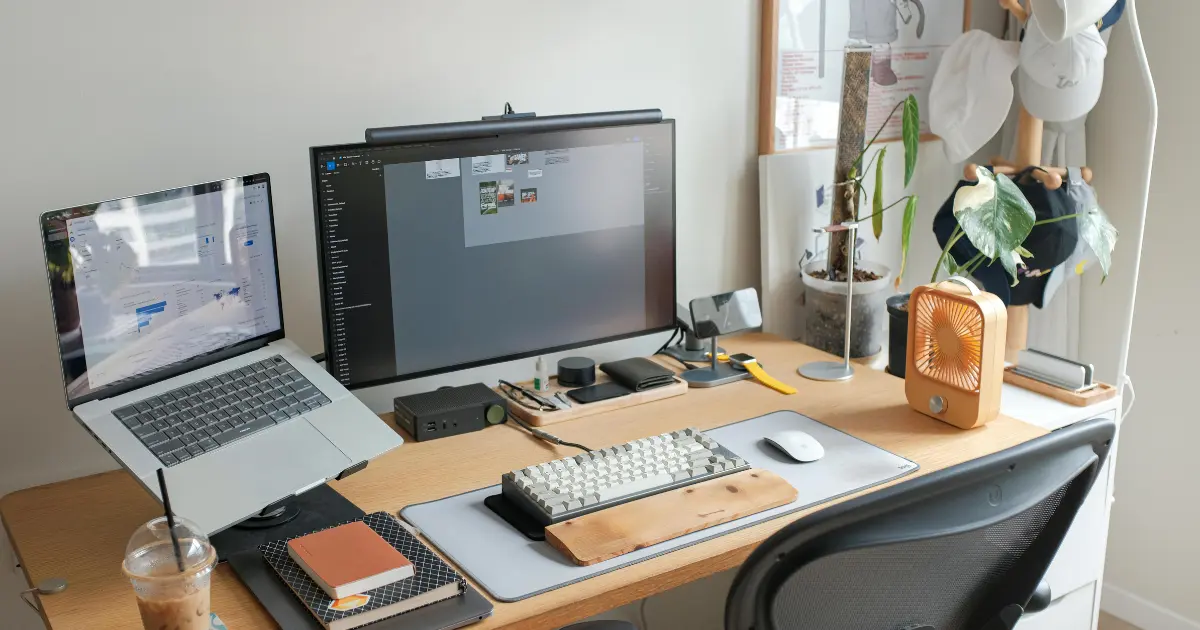
Starting your first remote job feels exciting right up until you sit down at your kitchen table for eight hours and your back starts screaming by 2 p.m. Or your video call freezes at the worst possible moment because your Wi-Fi can’t handle a Zoom meeting and a Netflix stream running in the next room.
Most new remote workers make the same mistakes: buying too much gear too fast, buying the wrong gear, or trying to power through with nothing but a laptop and a dining chair. You don’t need to spend a fortune to work comfortably and productively from home. But you do need the right remote work essentials for beginners, set up in the right order, for the right reasons. This guide walks through exactly what matters, what can wait, and how to build a setup that actually works for your budget and your space.
Table of Contents
What Counts as a Remote Work Essential?
A true remote work essential is something that directly affects your ability to do your job, your comfort while doing it, or your health over the long run. That’s it. It’s not about having a Pinterest-worthy desk setup on day one.
Think about it in three buckets:
- Function – Can you actually do your job? A laptop that runs your software and internet that doesn’t drop mid-call are non-negotiable.
- Comfort – Can you sit for hours without pain? This is where a decent chair and desk height come in.
- Sustainability – Will this setup hurt you over months and years? Posture, eye strain, and repetitive strain injuries are real risks that build slowly.
Anything outside those three buckets the ring light, the mechanical keyboard with custom keycaps, and the fancy desk mat is a nice-to-have. Nice-to-haves matter for morale and enjoyment, but they shouldn’t come before the basics. We’ll separate the two clearly throughout this guide.
Beginner Note: If you’re setting up your remote work essentials for beginners on a tight timeline (say, you start your new job in a week), prioritize the “Function” bucket first. Comfort and sustainability items can follow over your first month.
Remote Work Essentials Every Beginner Should Have
Reliable Laptop
- What it is: The computer you’ll use every workday. For most remote jobs, that means a laptop powerful enough to run your required software, video calls, spreadsheets, design tools, or whatever your role requires.
- Why beginners need it: If your laptop is lagging, nothing else on this list matters. A slow machine adds stress and makes you look unprepared in meetings when you are on a video call or waiting forever for a browser tab to open.
- Important Features: At least 8GB of RAM (16GB if you plan to do video editing, design work or run multiple heavy programs), a solid-state drive (SSD), rather than an old-style hard drive, a built-in webcam (or the ability to add one), and battery life that lasts for half a day of meetings, in case you ever need to work away from your desk.
- Pros: A capable laptop means smoother calls, faster switching between apps and fewer frustrating freezes during work hours.
- Cons: High-end laptops cost more, and it’s easy to go overboard on specs you don’t really need for basic office work.
- Who should buy it: Every remote worker. This is the one item on this entire list you truly cannot skip.
- Budget option: A refurbished or previous-generation business laptop (think Lenovo ThinkPad or Dell Latitude models a generation or two back) with 8GB RAM and an SSD.
- Mid-range option: A current-generation laptop with 16GB RAM, a solid processor, and a comfortable keyboard — many mainstream Windows ultrabooks or a base MacBook Air fit here.
- Premium recommendation: A higher-spec MacBook Pro or a business-class Windows laptop with 32GB RAM, ideal for video editing, software development, or design work.
- Buying tips: Check what software your employer requires before buying. Some companies provide a laptop; don’t buy your own until you confirm you need to.
- Common mistakes: Buying a gaming laptop for basic office work (heavy, loud fans, poor battery life) or buying the cheapest possible option and struggling with lag for a full year.
High-Speed Internet
- What it is: Your home internet connection, ideally with enough speed and stability to handle video calls, file uploads, and cloud-based tools at the same time.
- Why beginners need it: A weak connection is the single most common cause of remote work embarrassment frozen video, dropped calls, garbled audio. The Federal Communications Commission publishes general guidance on broadband speeds, and for remote work with regular video calls, most people are comfortable with connections well above the FCC’s baseline broadband definition.
- Key features: Look for a plan with at least 25 Mbps download and 5 Mbps upload as an absolute floor, though 100+ Mbps download is far more comfortable if multiple people in your home are online at once.
- Pros: Stable, fast internet removes an entire category of daily stress and makes video calls look professional.
- Cons: Higher-speed plans cost more monthly, and availability depends heavily on where you live.
- Who should buy it: Everyone, but especially anyone whose role involves frequent video meetings or large file transfers.
- Budget option: A mid-tier cable or fiber plan around 100-200 Mbps, which handles video calls for one or two remote workers comfortably.
- Mid-range option: A 300-500 Mbps fiber plan if available in your area, giving you headroom for multiple devices and household streaming.
- Premium recommendation: Gigabit fiber with a mesh Wi-Fi system, ideal if your household has several people working or schooling from home simultaneously.
- Buying tips: Run a speed test during your normal work hours, not just once. Congestion in the evening can be very different from mid-morning.
- Common mistakes: Assuming Wi-Fi signal strength equals speed. A weak router placed far from your desk can bottleneck even a fast plan.
Comfortable Desk
- What it is: A dedicated surface for your laptop, monitor, and work materials — separate from your kitchen table or couch.
- Why beginners need it: A proper desk sets boundaries between work and home life and gives you a stable surface at the right height, which matters more than people expect for posture.
- Key features: Look for a desk at least 40-48 inches wide, sturdy enough not to wobble when you type, and at a height that lets your elbows rest around 90 degrees when typing.
- Pros: A dedicated desk improves focus, keeps cables organized, and reduces the temptation to work from bed or the couch.
- Cons: Requires dedicated floor space, which isn’t always available in smaller apartments.
- Who should buy it: Anyone working remotely more than a few days a week.
- Budget option: A simple particleboard desk from a big-box retailer, around 40 inches wide.
- Mid-range option: A solid-surface desk with cable management grommets and a scratch-resistant top.
- Premium recommendation: An electric standing desk with programmable height presets (more on this in the upgrades section).
- Buying tips: Measure your space before buying. A desk that’s too large for the room creates more problems than it solves.
- Common mistakes: Choosing a desk that’s too small to fit a monitor and laptop side by side, forcing an awkward, cramped setup.
Ergonomic Chair
- What it is: A chair designed to support your lower back and encourage good posture during long sitting sessions.
- Why beginners need it: Sitting incorrectly for eight hours a day, five days a week, adds up. The Mayo Clinic has published general guidance emphasizing that posture and sitting habits play a meaningful role in back health.
- Key features: Adjustable seat height, lumbar support, and armrests that let your shoulders relax rather than hunch.
- Pros: A good chair reduces back and neck strain and can noticeably improve how you feel by the end of the workday.
- Cons: Genuinely ergonomic chairs are one of the pricier items on this list, and not every budget option delivers real lumbar support.
- Who should buy it: Anyone sitting for most of their workday, which is most remote workers.
- Budget option: A mesh-back office chair with basic lumbar support and adjustable height, widely available for well under $150.
- Mid-range option: A chair with adjustable lumbar support, adjustable armrests, and a tilt-lock mechanism.
- Premium recommendation: A well-known ergonomic brand chair with fully adjustable lumbar, seat depth, and armrest positioning.
- Buying tips: If possible, sit in the chair before buying, or buy from a retailer with a generous return window since fit is personal.
- Common mistakes: Using a dining chair or gaming chair long-term. Gaming chairs look supportive but often lack proper lumbar contouring for all-day desk work.
External Monitor
- What it is: A second screen connected to your laptop, giving you more visual workspace.
- Why beginners need it: Working off a single laptop screen all day means constant window-switching and a hunched-forward posture as you lean toward a small display.
- Key features: At least 24 inches, 1080p resolution or higher, and an adjustable stand or VESA mount compatibility.
- Pros: More screen space measurably speeds up multitasking, email in one window, your main document in another.
- Cons: Takes up desk space and adds another cable to manage.
- Who should buy it: Anyone who works with multiple documents, spreadsheets, or apps at once — which covers most office-based remote roles.
- Budget option: A 24-inch 1080p monitor from a reliable budget brand.
- Mid-range option: A 27-inch QHD monitor with better color accuracy, useful for design or detail-heavy work.
- Premium recommendation: An ultrawide or dual 27-inch 4K setup for power users juggling many windows at once.
- Buying tips: Check your laptop’s ports before buying. Older laptops may need an adapter for HDMI or DisplayPort.
- Common mistakes: Buying a monitor too large for the desk depth, forcing you to sit too close and strain your neck looking side to side.
Keyboard
- What it is: A separate keyboard used instead of typing directly on your laptop.
- Why beginners need it: Typing on a laptop keyboard for hours, especially when the laptop is raised on a stand, forces your wrists into an awkward angle.
- Key features: Comfortable key travel, a flat or slightly negative tilt, and wired or reliable wireless connectivity.
- Pros: A separate keyboard lets you position your laptop screen at eye level (on a stand) while keeping your hands at a natural height.
- Cons: One more accessory to buy, charge, or plug in.
- Who should buy it: Anyone using a laptop stand or external monitor as their main screen.
- Budget option: A basic wired membrane keyboard.
- Mid-range option: A wireless keyboard with adjustable tilt feet and multi-device Bluetooth switching.
- Premium recommendation: A mechanical or ergonomic split keyboard designed to reduce wrist strain during heavy typing days.
- Buying tips: If you type a lot, test the keys in person if you can; some people prefer soft membrane keys, others prefer mechanical switches.
- Common mistakes: Buying a keyboard so wide it pushes your mouse too far to the side, causing shoulder strain.
Mouse
- What it is: A separate pointing device, replacing your laptop’s trackpad for daily use.
- Why beginners need it: Trackpads are fine occasionally but tiring for hours of precise clicking, especially in spreadsheet or design work.
- Key features: A comfortable grip size for your hand, reliable tracking, and (for many people) a scroll wheel that handles long documents well.
- Pros: Faster, more precise, and far less tiring than a trackpad over a full workday.
- Cons: Needs desk space and, for wireless models, occasional battery changes or charging.
- Who should buy it: Nearly everyone working from a desk setup.
- Budget option: A simple wired optical mouse.
- Mid-range option: A wireless mouse with adjustable DPI and a rechargeable battery.
- Premium recommendation: An ergonomic vertical mouse, which keeps your wrist in a more natural handshake position and can reduce strain for people who type and click for many hours a day.
- Buying tips: If you have smaller or larger hands, check the mouse’s dimensions rather than assuming “one size fits all.”
- Common mistakes: Ignoring wrist position entirely and developing soreness that could have been avoided with a better grip shape.
Laptop Stand
- What it is: A stand that raises your laptop screen to eye level.
- Why beginners need it: Looking down at a laptop screen for hours strains your neck. Pairing a stand with an external keyboard and mouse lets you raise the screen without cramping your hands.
- Key features: Adjustable height, sturdy build, and good ventilation to avoid overheating your laptop.
- Pros: Immediate posture improvement for very little money.
- Cons: Useless without a separate keyboard and mouse, since you can’t type comfortably on a raised laptop.
- Who should buy it: Anyone using their laptop as a primary or secondary screen, especially without an external monitor.
- Budget option: A simple folding aluminum stand.
- Mid-range option: An adjustable stand with multiple height and angle settings.
- Premium recommendation: A stand with built-in cooling and cable routing, often bundled with docking capability.
- Buying tips: Make sure the stand fits your specific laptop size — some are designed for smaller ultrabooks only.
- Common mistakes: Buying a stand but continuing to type directly on the laptop, which defeats the ergonomic benefit and creates an awkward wrist angle.
Noise-Canceling Headphones
- What it is: Headphones that block outside noise, helping you focus and sound clear on calls.
- Why beginners need it: Whether you have kids, roommates, traffic noise, or a barking dog, distractions are part of home life. Good headphones protect your focus and your professionalism on calls.
- Key features: Active noise cancellation, a comfortable fit for multi-hour wear, and a clear built-in or attachable microphone.
- Pros: Immediate improvement in call clarity and personal focus, especially in shared or noisy living spaces.
- Cons: Higher-end noise-canceling models can be a real investment, and all-day wear can feel warm or heavy for some people.
- Who should buy it: Anyone in a noisy household or who takes frequent video/audio calls.
- Budget option: Wired headphones with passive noise isolation.
- Mid-range option: Wireless headphones with active noise cancellation and a dedicated boom microphone.
- Premium recommendation: A well-known over-ear ANC headset built specifically for all-day office wear and call clarity.
- Buying tips: If your job is call-heavy, prioritize microphone quality over cancellation strength — how you sound matters more than how much noise you personally can’t hear.
- Common mistakes: Buying earbuds designed for gym workouts rather than long wear, leading to ear fatigue by early afternoon.
HD Webcam
- What it is: A camera, either built-in or external, used for video meetings.
- Why beginners need it: Many laptop webcams are grainy or poorly positioned. A dedicated HD webcam makes you look sharper and more professional on calls.
- Key features: 1080p resolution minimum, decent low-light performance, and a mounting clip that fits your monitor or laptop stand.
- Pros: Noticeably better video quality builds a more professional impression in meetings.
- Cons: An added expense if your laptop’s built-in camera is already acceptable.
- Who should buy it: Anyone whose laptop camera looks dark, blurry, or oddly angled, or anyone using an external monitor that covers the laptop’s built-in camera.
- Budget option: A basic 1080p USB webcam.
- Mid-range option: A webcam with auto light correction and a wider field of view.
- Premium recommendation: A webcam with 4K capture and advanced software-based framing and lighting adjustment.
- Buying tips: Test your current laptop camera in a real video call before assuming you need an upgrade; sometimes better lighting solves the problem for free.
- Common mistakes: Mounting the webcam too low, creating an unflattering upward angle during calls.
USB Hub
- What it is: A small adapter that adds extra ports to a laptop that may only have one or two USB-C ports.
- Why beginners need it: Modern laptops, especially thin ultrabooks, often have very few ports. A hub lets you connect a monitor, keyboard, mouse, and charger at once.
- Key features: Enough ports for your specific devices, decent build quality, and (ideally) pass-through charging.
- Pros: Solves the “not enough ports” problem cheaply and cleanly.
- Cons: Cheap hubs can be unreliable or bottleneck data speeds.
- Who should buy it: Anyone with a laptop that has two or fewer USB-C ports.
- Budget option: A basic 4-in-1 USB-C hub.
- Mid-range option: A hub with HDMI, multiple USB-A ports, and an SD card reader.
- Premium recommendation: A hub with 100W pass-through charging and dual monitor support.
- Buying tips: Check exactly which ports you need before buying; don’t overpay for ports you’ll never use.
- Common mistakes: Buying the cheapest hub available and dealing with a connection that randomly disconnects your monitor.
Docking Station
- What it is: A more advanced version of a USB hub, often single-cable, that connects your laptop to multiple monitors, peripherals, and power at once.
- Why beginners need it: If you regularly connect and disconnect the same set of devices (say, at a shared desk or if you travel with your laptop), a dock lets you do it with one cable instead of five.
- Key features: Dual monitor support, gigabit ethernet, multiple USB ports, and laptop charging through the dock itself.
- Pros: Huge convenience for anyone who moves their laptop frequently but wants a full desk setup waiting for them.
- Cons: More expensive than a basic hub and sometimes requires drivers specific to your laptop brand.
- Who should buy it: Remote workers who dock and undock daily, or anyone running two or more external monitors.
- Budget option: A basic single-monitor USB-C dock.
- Mid-range option: A dual-monitor dock with ethernet and multiple data ports.
- Premium recommendation: A brand-specific docking station matched to your laptop for guaranteed compatibility and higher charging wattage.
- Buying tips: Check compatibility with your specific laptop model, especially for charging wattage.
- Common mistakes: Buying a dock incompatible with your laptop’s charging needs, leaving your battery draining even while plugged in.
Desk Lamp
- What it is: Dedicated lighting for your workspace, separate from overhead room lighting.
- Why beginners need it: Poor lighting causes eye strain and makes you look washed out on video calls.
- Key features: Adjustable brightness, adjustable color temperature, and a flexible arm or angle adjustment.
- Pros: Improves both eye comfort and video call appearance for very little money.
- Cons: One more item taking up desk space and needing an outlet.
- Who should buy it: Anyone working in a dim room or without good natural light.
- Budget option: A simple clip-on LED desk lamp.
- Mid-range option: An adjustable lamp with multiple brightness and color temperature settings.
- Premium recommendation: A smart desk lamp with app or voice control and automatic daylight adjustment.
- Buying tips: Position the lamp to reduce screen glare rather than pointing it directly at your monitor.
- Common mistakes: Relying only on harsh overhead lighting, which creates shadows and unflattering video call lighting.
Surge Protector
- What it is: A power strip with built-in protection against electrical surges.
- Why beginners need it: Your laptop, monitor, and other electronics represent a real investment. A single power surge can damage them without protection.
- Key features: A joule rating suited to your equipment, enough outlets for your setup, and USB charging ports if useful.
- Pros: Cheap insurance for expensive electronics.
- Cons: Needs replacing every few years as surge protection capacity degrades over time.
- Who should buy it: Every remote worker with a multi-device desk setup.
- Budget option: A basic 6-outlet surge protector strip.
- Mid-range option: A strip with a higher joule rating plus built-in USB-A and USB-C charging ports.
- Premium recommendation: A smart power strip with individually controllable outlets and surge monitoring.
- Buying tips: Check the joule rating — higher is generally better protection for sensitive electronics.
- Common mistakes: Using a basic power strip with zero surge protection, assuming any strip does the same job.
Cable Management
- What it is: Clips, sleeves, or trays that keep your cords organized instead of tangled on the floor or desk.
- Why beginners need it: Tangled cables aren’t just messy they’re a tripping hazard and make troubleshooting connection issues far harder.
- Key features: Adhesive or clamp-based clips, a sleeve for bundling cords, and under-desk trays for hiding power strips.
- Pros: A cleaner, safer, and more organized desk for very little money.
- Cons: Requires some initial setup time to route cables properly.
- Who should buy it: Anyone with more than two or three cords on their desk, which is nearly everyone.
- Budget option: A basic pack of adhesive cable clips.
- Mid-range option: A cable management kit with sleeves, clips, and an under-desk tray.
- Premium recommendation: A full cable management system built into a desk with grommets and channels.
- Buying tips: Plan your cable routing before you buy measure the distance from your outlets to your desk.
- Common mistakes: Ignoring cable management entirely until cords become a tangled, dust-collecting mess.
Notebook
- What it is: A simple physical notebook for jotting down notes, to-do lists, and ideas away from your screen.
- Why beginners need it: Not everything needs to live in a digital app. A notebook is faster for quick notes and gives your eyes a break from screens during calls.
- Key features: A size that fits comfortably on your desk and a binding that lays flat while you write.
- Pros: Zero learning curve, no battery, no software glitches.
- Cons: Notes aren’t searchable or backed up the way digital notes are.
- Who should buy it: Almost every remote worker benefits from having one on hand, even if most notes go digital.
- Budget option: A basic spiral notebook.
- Mid-range option: A dot-grid or bullet journal-style notebook.
- Premium recommendation: A reusable smart notebook that scans handwritten notes to the cloud.
- Buying tips: Keep it within arm’s reach, not tucked in a drawer, or you simply won’t use it.
- Common mistakes: Buying an elaborate planner system and abandoning it within a month because it’s more complicated than needed.
Blue Light Glasses (Optional)
- What it is: Glasses with a coating designed to filter some blue light wavelengths from screens.
- Why beginners need it: Some people report reduced eye strain and better sleep with reduced blue light exposure in the evening, though individual results vary and the research on blue light glasses specifically is mixed.
- Key features: A comfortable fit and a lens tint that doesn’t distort your screen colors too heavily for detail-sensitive work.
- Pros: Low-cost, low-risk item that some people find genuinely helpful for evening screen comfort.
- Cons: Not a substitute for proper lighting, screen brightness settings, or regular breaks and effectiveness varies person to person.
- Who should buy it: Anyone who notices eye fatigue by late afternoon, especially with evening screen use.
- Budget option: Basic blue light filtering glasses from any optical retailer.
- Mid-range option: Prescription lenses with an added blue light coating.
- Premium recommendation: Custom prescription computer glasses tuned to your typical monitor distance.
- Buying tips: Try adjusting your monitor’s built-in night mode or brightness first; it’s free and may solve the same problem.
- Common mistakes: Relying on glasses alone while ignoring basic habits like the 20-20-20 rule for eye breaks.
Water Bottle
- What it is: A reusable water bottle kept at your desk.
- Why beginners need it: It sounds minor, but working from home makes it easy to forget to hydrate, especially during back-to-back meetings.
- Key features: A size that holds enough water for a half-day, and a lid that won’t spill near your electronics.
- Pros: Cheap, simple, and genuinely helps with focus and energy throughout the day.
- Cons: None worth mentioning.
- Who should buy it: Every remote worker.
- Budget option: Any basic reusable bottle you already own.
- Mid-range option: An insulated bottle that keeps water cold through a long workday.
- Premium recommendation: A large-capacity insulated bottle with time markers to encourage regular sipping.
- Buying tips: Keep it somewhere you’ll actually see it, not hidden in a bag.
- Common mistakes: Placing an open bottle directly next to a keyboard or laptop, risking spills near electronics.
Footrest (Optional)
- What it is: A small platform that supports your feet if your chair or desk height leaves them dangling.
- Why beginners need it: If your feet don’t rest flat on the floor, a footrest helps maintain proper leg and hip alignment while sitting.
- Key features: An adjustable height or tilt angle, and a stable, non-slip base.
- Pros: An inexpensive fix for a real posture problem, especially for shorter individuals paired with a standard-height desk.
- Cons: Not needed at all if your desk and chair height already let your feet rest flat.
- Who should buy it: Anyone whose feet don’t comfortably reach the floor while seated with proper hip alignment.
- Budget option: A basic foam wedge footrest.
- Mid-range option: An adjustable-height footrest with a rocking or tilting platform.
- Premium recommendation: A footrest with massage texture and multiple height settings.
- Buying tips: Try adjusting your chair height first — sometimes that alone solves the problem without an extra purchase.
- Common mistakes: Buying one without checking whether it’s actually needed, cluttering the footwell for no real benefit.
Nice-to-Have Upgrades
Once your core essentials are covered, these upgrades add comfort, efficiency, or polish, but none of them are required to do your job well.
Standing Desk
An electric standing desk lets you switch between sitting and standing throughout the day. General ergonomic guidance, including material referenced by OSHA, points to alternating positions as a helpful way to reduce the strain of prolonged static sitting. It’s a genuinely useful upgrade, but a fixed-height desk paired with occasional stretch breaks works fine for most beginners in year one.
Mechanical Keyboard
Mechanical switches offer a more satisfying, often faster typing feel and tend to last longer than basic membrane keyboards. It’s a comfort and durability upgrade, not a productivity requirement.
Monitor Light Bar
A light bar clips to the top of your monitor and lights your desk without creating screen glare, unlike a traditional desk lamp aimed at an angle. Nice for eye comfort, not essential.
Dual Monitors
Two external monitors instead of one gives serious multitaskers even more screen real estate. Worth it if your role genuinely requires juggling many windows; overkill for simpler jobs.
Microphone
A dedicated USB microphone improves your voice clarity on calls beyond what built-in laptop mics or basic headset mics offer. Valuable for client-facing roles, presentations, or anyone who does a lot of recorded video.
Portable Monitor
A slim, lightweight second screen you can pack in a bag; useful if you split time between home and coffee shops, co-working spaces, or travel.
Wireless Charger
A charging pad for your phone keeps your desk cleaner than a tangle of charging cables. A small convenience, nothing more.
Smart Lighting
App- or voice-controlled lighting lets you adjust your workspace brightness and color temperature without getting up. A comfort upgrade with no real productivity impact.
What You Can Skip at First
- A top-of-the-line 4K monitor — a solid 1080p or QHD screen is plenty for most beginners.
- A premium ergonomic chair over $500 — a solid mid-range chair with real lumbar support gets you 90% of the benefit.
- Multiple monitors — start with one and add a second only if you genuinely feel the need.
- A ring light — useful for content creators, unnecessary for standard video meetings with decent room lighting.
- A custom mechanical keyboard build — fun as a hobby, not a requirement for productivity.
- Smart home office gadgets — nice touches, but they solve problems you may not actually have yet.
Pro Tip: Give yourself 60-90 days in a new remote role before buying anything beyond the core essentials. You’ll have a much clearer sense of what you actually need once you know your real daily workflow.
Beginner Budget Setup ($500)
| Item | Estimated Cost |
| Refurbished/budget laptop (if not employer-provided) | Already owned or provided |
| Basic office chair | $100 |
| Simple desk | $100 |
| 24-inch 1080p monitor | $130 |
| Wired keyboard and mouse combo | $30 |
| Laptop stand | $25 |
| Basic wired headphones | $25 |
| Surge protector | $20 |
| Cable clips | $10 |
| Desk lamp | $25 |
| Notebook | $5 |
| Total | ~$470 |
This setup covers every true essential without any luxury spending. It’s not glamorous, but it works.
Mid-Range Setup ($1000)
| Item | Estimated Cost |
| Mid-range laptop (if applicable) | Varies / often provided |
| Ergonomic chair with adjustable lumbar | $250 |
| Solid desk with cable grommets | $200 |
| 27-inch QHD monitor | $250 |
| Wireless keyboard and mouse | $80 |
| Adjustable laptop stand | $40 |
| Wireless ANC headphones | $150 |
| HD webcam | $60 |
| USB-C hub | $40 |
| Desk lamp with adjustable temperature | $40 |
| Surge protector with USB ports | $35 |
| Cable management kit | $20 |
| Total | ~$1,165 (adjust individual items to hit your target) |
This tier covers real comfort upgrades — better lumbar support, a bigger screen, and noise cancellation — without moving into luxury territory.
Premium Setup ($2000+)
| Item | Estimated Cost |
| High-spec laptop or workstation | Varies |
| Premium ergonomic chair | $700 |
| Electric standing desk | $500 |
| Dual 27-inch monitors | $500 |
| Mechanical or ergonomic split keyboard | $150 |
| Ergonomic vertical mouse | $80 |
| Premium ANC headset | $300 |
| 4K webcam | $150 |
| Docking station | $200 |
| USB microphone | $130 |
| Monitor light bar | $60 |
| Smart lighting | $80 |
| Total | ~$2,850 (scale up or down based on priorities) |
At this level, you’re optimizing for long-term comfort and efficiency across a full-time, multi-year remote career.
Remote Work Essentials Checklist
| Category | Item | Have It? |
| Function | Reliable laptop | ☐ |
| Function | High-speed internet | ☐ |
| Comfort | Comfortable desk | ☐ |
| Comfort | Ergonomic chair | ☐ |
| Comfort | External monitor | ☐ |
| Comfort | Keyboard | ☐ |
| Comfort | Mouse | ☐ |
| Comfort | Laptop stand | ☐ |
| Function | Noise-canceling headphones | ☐ |
| Function | HD webcam | ☐ |
| Function | USB hub or docking station | ☐ |
| Comfort | Desk lamp | ☐ |
| Sustainability | Surge protector | ☐ |
| Sustainability | Cable management | ☐ |
| Comfort | Notebook | ☐ |
| Comfort | Water bottle | ☐ |
Common Beginner Mistakes
- Buying everything on day one. You don’t yet know your real workflow. Start with essentials, then add based on actual needs.
- Working from the couch or bed long-term. It feels comfortable at first, then quietly wrecks your posture and your ability to mentally separate work from rest.
- Ignoring internet speed until it’s a problem. Test your connection before your first big meeting, not during it.
- Skipping the chair to save money. This is the one item where cutting corners tends to cost you the most in discomfort down the line.
- Overbuying monitor size for a small desk. A 32-inch monitor on a 40-inch desk leaves no room for anything else.
- Forgetting cable management entirely. A tangled mess under the desk isn’t just ugly — it’s a genuine trip hazard.
- Not asking the employer what they provide. Some companies supply laptops, monitors, or a stipend. Always check before spending your own money.
Productivity Tips
- Set a consistent start time. Your brain adjusts to routine faster than you’d expect.
- Use a second monitor for reference material. Keep your main task in one window and supporting documents in another instead of constantly alt-tabbing.
- Batch your notifications. Check email and chat at set intervals rather than reacting to every ping.
- Take real breaks away from your desk. Even five minutes standing up and looking away from the screen helps reset focus.
- Keep a running notebook of tasks. Writing tasks down, even briefly, reduces the mental load of trying to remember everything.
- Close unused tabs and apps. A cluttered digital desktop creates the same distraction as a cluttered physical one.
Ergonomic Tips
- Elbows at roughly 90 degrees when typing, whether at a desk or standing desk.
- Monitor top at or slightly below eye level, about an arm’s length away.
- Feet flat on the floor or on a footrest, with knees roughly level with hips.
- Shoulders relaxed, not hunched toward your ears — a common sign your desk or keyboard height needs adjusting.
- Follow general break guidance. Organizations like NIOSH have published general recommendations around taking regular breaks from repetitive tasks and static postures to reduce strain risk.
- Alternate sitting and standing if you have a standing desk, rather than standing all day, which brings its own fatigue.
Warning: If you experience ongoing pain, numbness, or tingling in your wrists, neck, or back, that’s a signal to reassess your setup and if it persists, talk to a doctor. Ergonomic gear reduces risk; it doesn’t eliminate it entirely.
Cleaning and Maintenance Tips
- Wipe down your keyboard weekly with a slightly damp microfiber cloth (laptop unplugged and powered off first).
- Dust your monitor and laptop vents monthly to prevent overheating.
- Check surge protector age. Most surge protectors lose effectiveness over a few years and should be replaced periodically, even if they still technically power your devices.
- Recharge wireless peripherals proactively rather than waiting for them to die mid-meeting.
- Inspect cables periodically for fraying, especially charging cables that get bent repeatedly.
- Clean your chair’s fabric or mesh per the manufacturer’s instructions every few months to extend its life.
Final Thoughts
Building out remote work essentials for beginners isn’t about buying everything at once it’s about covering function first, comfort second, and long-term sustainability third. Start with a capable laptop and dependable internet. Add a real desk and a chair that actually supports your back. Layer in the smaller comfort items – headphones, a webcam, better lighting once you understand your daily rhythm.
Give yourself permission to build this gradually. Your first month of remote work will teach you more about what you actually need than any checklist can. Revisit your setup after 60-90 days, and upgrade the specific pain points you’ve noticed rather than guessing in advance.
If you’re ready to go deeper, check out our Ultimate Guide to Building a Remote Work Setup for a full walkthrough, or browse our dedicated guides on ergonomic chairs, standing desks, and monitors for remote work to compare specific picks for your budget.
Disclaimer : This post contains affiliate links. This means we may earn a commission should you chose to sign up for a program or make a purchase using these links. There is no added cost to you but your purchase through these links helps support our content. Check out our disclaimer and disclosure page for more details.
FAQs
Do I really need an external monitor if I already have a laptop screen?
You can work without one, but most people find a second screen speeds up multitasking noticeably. It’s one of the higher-impact upgrades on this list for the price.
What’s the single most important remote work essential for beginners?
Reliable internet and a capable laptop come first nothing else matters if you can’t actually do your job. After that, an ergonomic chair has the biggest impact on daily comfort.
Can I use my gaming chair instead of buying an ergonomic office chair?
Gaming chairs can work in a pinch, but they’re generally designed for a reclined gaming posture rather than the upright support needed for typing-focused desk work. A proper office chair is usually the better long-term choice.
How much should a beginner realistically spend on a remote work setup?
A solid, fully functional setup can be built for around $500. There’s no requirement to spend more than that in your first few months.
Do I need a standing desk right away?
No. A standing desk is a nice-to-have upgrade, not an essential. A fixed-height desk with regular movement breaks works fine to start.
Is a docking station necessary, or is a USB hub enough?
A basic USB hub is enough for most beginners. A docking station becomes more useful if you frequently connect and disconnect multiple monitors and peripherals.
What internet speed do I actually need for remote work?
Most people are comfortable with plans well above 25 Mbps download, especially with regular video calls. Check your speed during your actual work hours to be sure.
Are blue light glasses worth buying?
They’re inexpensive and some people find them helpful for evening eye comfort, though results vary by individual. Adjusting your screen’s built-in night mode is a free step worth trying first.
How do I know if my chair height is correct?
Your feet should rest flat on the floor (or a footrest), your knees roughly level with your hips, and your elbows near 90 degrees when typing.
Should I buy a new laptop specifically for remote work?
Only if your current laptop can’t handle your job’s software requirements, or if your employer doesn’t provide one. Check with your employer before spending your own money.
What’s the biggest mistake new remote workers make with their setup?
Buying too much too fast. It’s better to start with true essentials and add upgrades once you understand your actual daily workflow.
Do I need noise-canceling headphones if my home is already quiet?
Not necessarily, but even quiet homes have occasional noise. A comfortable headset with a good microphone still helps you sound clear on calls.
How often should I replace my surge protector?
Every few years is a reasonable guideline, since surge protection capacity degrades with use over time, even if the strip still technically powers your devices.
Is a mechanical keyboard actually better for remote work, or just a preference?
It’s largely preference and durability. Mechanical keyboards often last longer and feel more responsive to many typists, but a basic keyboard works fine functionally.
Can I set up a productive remote workspace in a small apartment?
Yes. Focus on a compact desk, a single monitor, and good cable management rather than trying to fit a large multi-monitor setup into limited space.

Hi, I am Jiyauddin. Freelance veteran with 20+ years of experience across computer operations, graphic design, and digital marketing. At GearForRemote.com, I share actionable guides, tech reviews, and proven workflows to help remote workers elevate their digital productivity.